
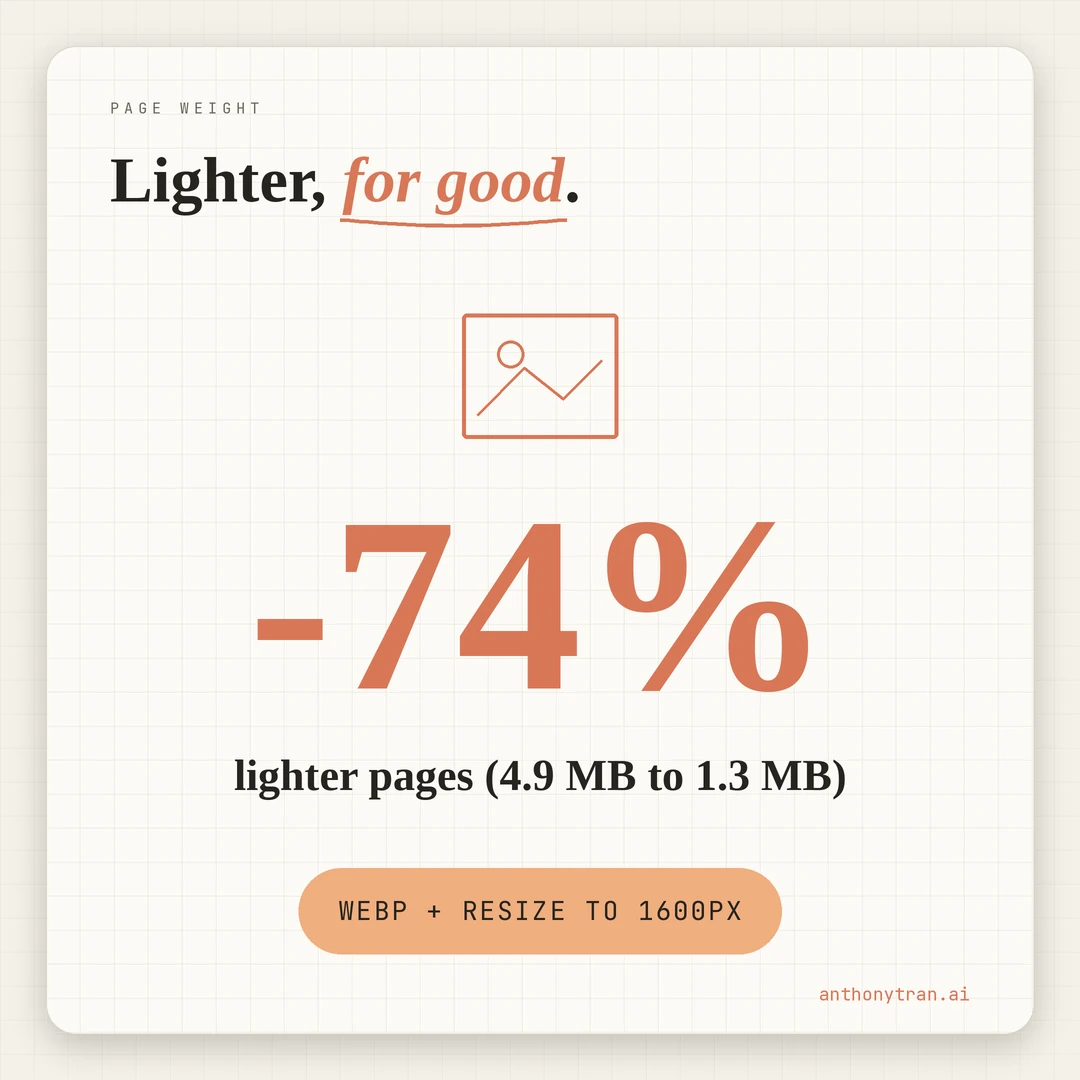
I had Claude write me a small image-shrinking script and my blog's images folder dropped from 4.9MB to 1.3MB in one evening. The prompt is at the bottom of this post. Paste it into Claude or ChatGPT and the AI does the work.
The biggest performance drag on most personal brand sites
The biggest drag on most personal brand sites is the images. Not the website builder, not the host, not the design.
The images. One oversized photo or screenshot can outweigh every page of text on the site combined.
On a phone, on coffee shop wifi, that weight shows up as a slow page that feels heavy and unfinished.
The fix is one of the cheapest moves you can make. Convert your inline blog images to WebP (a modern image format), resize anything wider than it needs to be, and do it once.
The savings stay in place from there. AI handles the work end to end. You do not need to be a developer to do this.
On my own blog the audit ran on April 22. The folder holding my inline blog images was 4.9MB across 12 photos.
After one pass, the folder dropped to 1.3MB. That is a 74 percent reduction.
One oversized portrait went from 880KB to 60KB and looks identical on screen.
This post is the story, the simple rules behind the fix, and the AI prompt that gets the same result on your site without you touching code.
What you need before you start
Two things.
The image files you want to shrink. JPG, PNG, anything your phone or laptop already has.
Originals stay safe. The process makes new optimized files and leaves the originals alone.
A backup copy of your images folder somewhere safe. Drag the whole folder to your desktop or another location before you start. The fix is reversible, but it is much easier to recover from a clean copy than to redo work.
That is it. No paid tools.
No accounts. No design app.
If you already use Claude or ChatGPT, you have everything you need.
Why WebP and why 1600 pixels wide
Two rules carry most of the savings.
The first is the format. WebP is a newer image format from Google. Smaller files than JPEG, same visible quality.
Google’s own testing showed 25 to 34 percent smaller. Every major browser handles it. Switching to WebP is the single biggest move on the list.
The second is the width. Most personal brand blogs display inline images somewhere between 700 and 1200 pixels wide on screen.
A 1600-pixel source covers most of those layouts at sharp quality, including on high-resolution phones and laptops, and is much lighter than the 4000-pixel-wide original your phone camera produces. If your blog displays inline images smaller than that, you can go narrower.
If you want extra-crisp images on the largest screens, go up to 2400. For most personal brand blogs, 1600 is the sweet spot.
The actual script (you can skip the code if you want)
Here is the script my site uses. If you are not a developer, you do not need to read the code.
It is here as proof and as the artifact the AI builds for you when you use the prompt at the bottom of this post. Skim past it to the next section if code is not your thing.
#!/usr/bin/env python3
"""
optimize_image.py. Convert an image to optimized WebP.

Install:
    python3 -m pip install Pillow

Usage:
    python3 optimize_image.py \
        --input /path/to/source.jpg \
        --number 012 \
        --slug podcast-desk

Output:
    public/assets/blog/012-podcast-desk.webp
"""

import argparse
import os
from PIL import Image, ImageOps

DEFAULT_QUALITY = 85
DEFAULT_MAX_WIDTH = 1600
OUTPUT_DIR = "public/assets/blog"


def optimize(input_path, number, slug, quality, max_width):
    output_path = os.path.join(OUTPUT_DIR, f"{number}-{slug}.webp")
    os.makedirs(OUTPUT_DIR, exist_ok=True)

    with Image.open(input_path) as original:
        # Respect EXIF rotation from phone cameras.
        img = ImageOps.exif_transpose(original)

        if img.width > max_width:
            ratio = max_width / img.width
            img = img.resize((max_width, round(img.height * ratio)), Image.LANCZOS)

        # Keep transparency for PNGs that have it; otherwise flatten to RGB.
        if img.mode == "P":
            img = img.convert("RGBA" if "transparency" in img.info else "RGB")
        elif img.mode not in ("RGB", "RGBA"):
            img = img.convert("RGB")

        img.save(output_path, "WEBP", quality=quality, method=6)

    saved_pct = (1 - os.path.getsize(output_path) / os.path.getsize(input_path)) * 100
    print(f"{input_path} -> {output_path} ({saved_pct:.0f}% smaller)")


def main():
    p = argparse.ArgumentParser()
    p.add_argument("--input", required=True)
    p.add_argument("--number", required=True)
    p.add_argument("--slug", required=True)
    p.add_argument("--quality", type=int, default=DEFAULT_QUALITY)
    p.add_argument("--max-width", type=int, default=DEFAULT_MAX_WIDTH)
    args = p.parse_args()
    optimize(args.input, args.number, args.slug, args.quality, args.max_width)


if __name__ == "__main__":
    main()
Then, from the project root:
python3 -m pip install Pillow
python3 optimize_image.py \
    --input /path/to/source.jpg \
    --number 031 \
    --slug whatever-the-image-shows
The script prints the before-after savings on every run. The output lands in the blog folder under a clean filename. Reference it in your post the same way you reference any other image.
Two things worth knowing. The script rotates phone photos right-side up automatically, so portrait shots do not come out sideways.
And it keeps transparency on PNG files that have it, so screenshots with see-through edges still look right. Both are common traps in image conversion. The script handles them for you.
How the first pass went
The first pass on my site took about twenty minutes. I had Claude write the script for me.
Then I walked through my image list one image at a time. For each one, the script converted the original photo into a much smaller WebP file and saved it into the blog folder.
Then I updated each blog post to point at the new file instead of the old one.
After every post was pointing at the new WebP files and the pages still looked right, I deleted the old JPG and PNG copies from the website folder. That last step matters.
The folder only shrinks if you actually remove the old files. The originals stayed safe in a separate folder outside the website so I had them if I ever wanted to redo the work.
Twelve images. Twenty minutes. The folder went from 4.9MB to 1.3MB and stayed there.
If your blog has been running for a while, this is the part where you save the most weight. Old images stay big.
The audit is where the big number comes from. Every image going forward just goes through the same routine.
Do not want to run a script? Two drag-and-drop options
If running anything on your computer feels like one step too far, two free in-browser tools do the same job.
Squoosh.app is Google’s own image compressor. Drag your image in, pick WebP from the output dropdown, slide the quality to around 80, click download.
Done. Works for one image at a time.
TinyPNG.com handles up to 20 images at once and outputs WebP as well as smaller JPGs and PNGs. Drag the batch in, wait a few seconds, download the zip.
Either tool gets you the same kind of file size cut as the script. The script just makes it repeatable so you do not have to remember the rule every time you add a new image. If you only post a few images a year, the drag-and-drop tools are honestly fine.
Things to watch for
A few small traps that came up.
Animated GIFs. Skip the conversion on animations. The fix is for still photos and screenshots. For an animated GIF, leave it alone or convert it to a short video file instead.
Do not forget the alt text. When you swap an old image for a new optimized one, keep the alt text (the short description that screen readers and Google use). Accessibility and search both rely on it. Easy to skip in a bulk edit. Do not skip it.
Do not run the fix on already-shrunk files. If a file is already a WebP or already small, running it again will make it slightly worse, not better. Always start from your original JPG or PNG.
Tiny icons do not need this. If your image is already under 50KB, the fix saves almost nothing. Focus on photos and screenshots that are 200KB or larger. That is where the real weight lives.
One oversized photo undoes the audit. The big win is making the rule a default for every new image, not a cleanup pass you remember to run sometimes. If you add a 4MB photo to a future post and forget to shrink it, the savings on the rest of the library quietly stop mattering. Make the shrink step part of how you publish.
What to do after the first pass
After your folder is on a diet, make the rule a habit. Every new photo or screenshot gets shrunk before it goes on the site.
Whether you run the script, paste the prompt, or drag the file into Squoosh, the move is the same. Ten seconds per image. The savings stick.
The same idea applies to a lot of quiet decisions on a personal brand site. The self-host-your-fonts move is another short fix in the same family. Set it up once, the site stays light, no one has to think about it again.
Put This Into Practice
Paste this into Claude or ChatGPT. The AI does the work.
I want to shrink the images on my personal brand blog. They are currently JPG and PNG files and I think they are too big. Help me convert them to a smaller format called WebP. Walk me through this one step at a time and wait for my answer at each step:
- Ask me how I publish my blog (WordPress, Squarespace, a static site, something else) so you know what folder my images live in and how the site references them.
- Ask me how many images I want to convert and roughly how big they are (small batch of under 20, or a bigger library).
- Based on my setup, give me the simplest path that will work for someone who is not a developer. If a drag-and-drop tool like Squoosh.app or TinyPNG.com fits, recommend that. If a small script fits better, offer to write it.
- If we go the script path, write me a single file that takes one image at a time, shrinks it to 1600 pixels wide if it is bigger, converts it to WebP at quality 85, rotates phone photos right-side up, keeps transparency on PNGs that have it, and saves the result with a clean filename. Then tell me exactly how to run it.
- After each image is converted, tell me what filename to use in my blog so the new file shows up correctly.
- At the end, tell me which old image files I can delete from my site so the savings actually stick.
Keep your answers short and skip the deep technical detail. I want to get this done in one sitting.
The prompt asks the AI to figure out the simplest path for your specific setup, then walks you through it. You do not need to know what a script is or which library to use. The AI handles the choices.
Subtract the weight
Image weight is one of the easiest wins on a personal brand site. Most sites pay it as a hidden cost: a few photos that are slightly too big, a screenshot nobody resized, a hero image straight out of the design tool. None of it shows up on a single page until you look at the math and find your images folder has quietly grown past the rest of the site.
One pass and a habit fixes it. The site loads faster, phone visitors stick around longer, and the pages stay light as you keep publishing.
None of it is dramatic on its own. All of it adds up over years.
Come build with me.
~ Anthony
Frequently asked.
Why convert blog images to WebP instead of using JPEG?
WebP is a newer image format from Google. Google's own testing showed WebP files are typically 25 to 34 percent smaller than JPEG at the same visible quality. Every major browser supports it. Smaller files mean faster page loads, especially on phones.
Do I need to be a developer to do this?
No. The whole job can be handled by AI. Paste the prompt at the bottom of this post into Claude or ChatGPT, give it your images, and the AI converts them and tells you exactly which filenames to use. If you would rather avoid AI entirely, free tools like Squoosh.app and TinyPNG.com let you drag and drop images into your browser and download the optimized versions.
What size should my blog images be?
1600 pixels wide is a good default. Most personal brand blogs display inline images somewhere between 700 and 1200 pixels wide on screen. A 1600-pixel source covers most of those layouts at sharp quality, even on high-resolution laptops and phones, without shipping a giant phone-camera original to every visitor.
Stop re-explaining yourself to Claude.
Grab the free AI Starter Kit: my exact Claude setup, so it knows your business. Plus the lessons as they land.
Anthony Tran
13 years in marketing and an Air Force veteran. I use Claude every day to market and grow my own business, and I break down what works in plain English. Writing and recording from Arizona.