
Some questions are too big for a quick answer. Research mode is Claude doing the digging for you, search after search, and coming back with a report you can verify. Here is what it does, in plain English, and when to reach for it.
What is Claude’s Research mode?
Research mode turns Claude from a quick answer machine into a systematic investigator. Turn it on, ask one big question, and Claude plans an approach, runs search after search on its own, follows the leads it finds, and comes back with an organized report full of citations you can check.
One thing up front so you are not hunting for a button you do not have: Research is a paid-plan feature. It comes with Pro, Max, Team, and Enterprise, and it works on the web and in the desktop and mobile apps.
Most of this comes from Anthropic’s free Claude 101 course, plus the current help docs. I did that digging so you do not have to.
Think of it as sending someone to do the digging
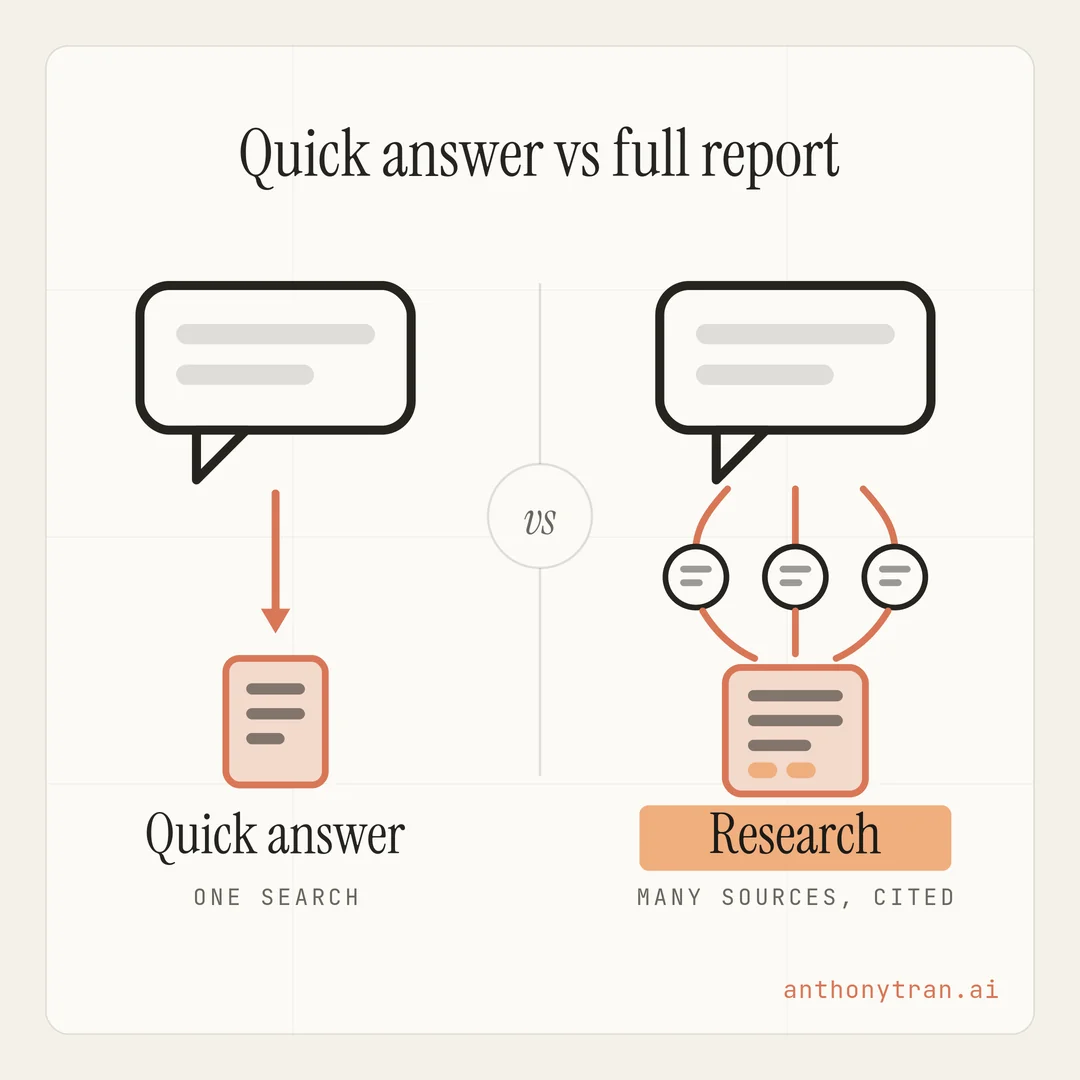
A regular chat with web search on is like asking a sharp friend a question. They look it up, they answer, you move on. Perfect for “what does this tool cost” or “when is that conference.”
Research mode is different. It is like handing a capable assistant a real assignment: “Go find out everything that matters about this, and bring me a report I can trust.
They go away, work through it source by source, chase down the loose ends, and come back with the write-up and the sources to back it up. The work that would eat your afternoon happens while you get coffee.
When to use it (and when a regular chat is better)
The skill here is picking the right tool, and the line is simpler than it sounds.
Stick with a regular chat when the answer needs one or two sources, like a quick fact or one company’s pricing page. Research would be overkill, like renting a truck to carry one grocery bag.
Reach for Research when the answer lives across many sources and you would normally block out hours for it:
- Comparing tools or vendors before you buy. Features, pricing, and complaints, pulled from all over and laid side by side.
- Sizing up a market or your competition. Who the players are and where the gaps sit.
- Planning something big. A launch, an event, a new offer, anything with a lot of moving parts to investigate.
- Prepping for meetings. With your connectors hooked up, Research can pull from your email, calendar, and files alongside the web, like researching every company on next week’s calendar.
How it actually works
You do not manage any of this, but knowing the steps helps you trust the output.
- Claude plans. It breaks your question into the angles worth investigating before it searches anything.
- Claude searches, then searches again. Each round builds on what the last one found. It chases promising leads and fills gaps without you steering.
- Claude writes the report. Everything gets organized into one readable answer instead of a pile of links.
- Claude shows its sources. The report comes with citations throughout, so you can check the claims that matter.
You might be wondering how long you will be waiting. Most reports take several minutes, and a very broad request can run a lot longer.
That sounds slow for AI until you remember what it replaces. The same digging by hand is an afternoon, not minutes.
How to turn it on
If you are on a paid plan, here is what you want to do:
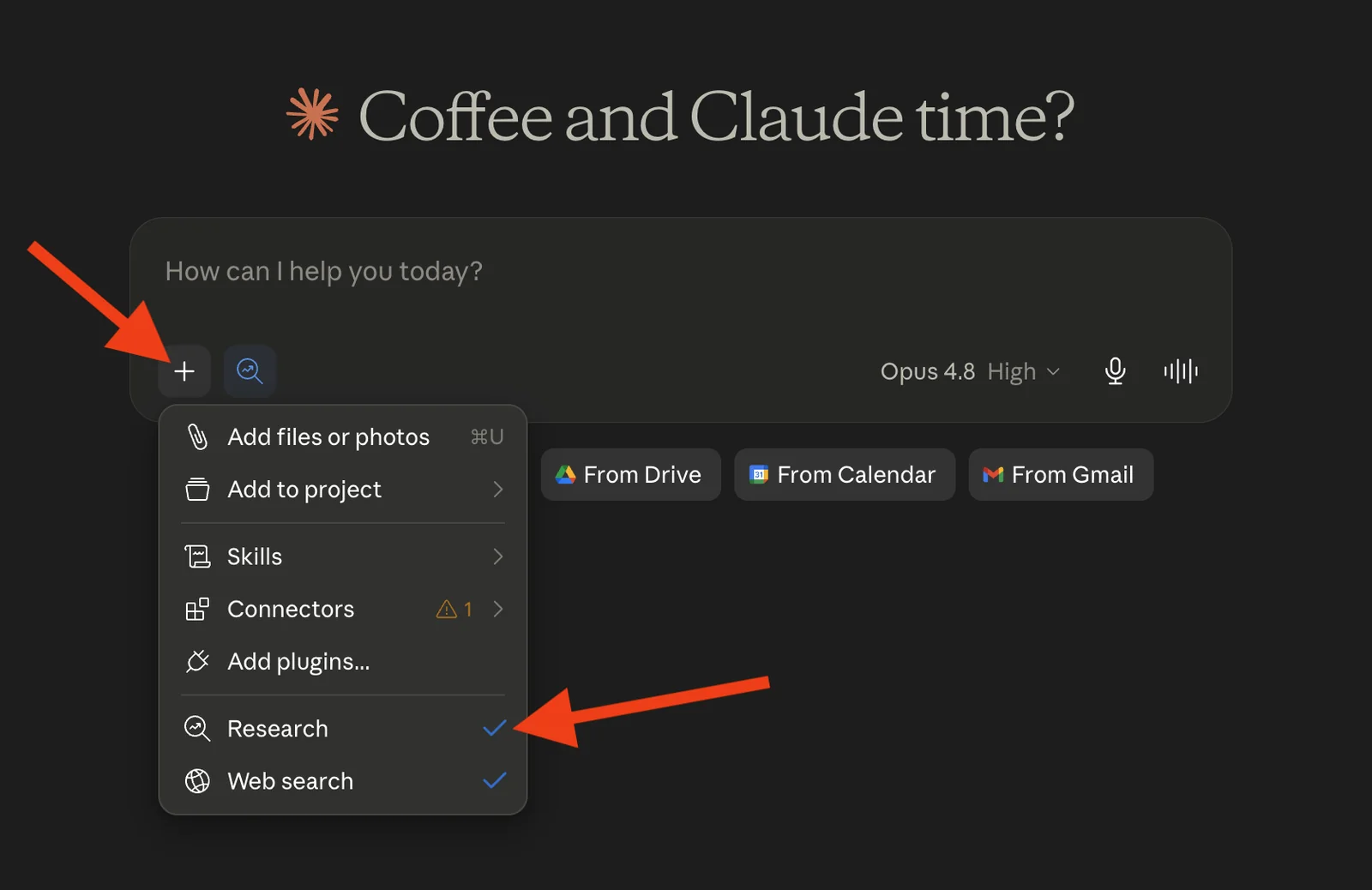
- Click the + button at the bottom left of the chat box.
- Select Research. An indicator appears when it is active.
- Make sure web search is on, it lives in that same menu, and Research needs it.
- Ask your question and let it work. You can watch the progress as it goes.
One tip from the help docs worth keeping: if Claude answers without researching, just tell it plainly, “please use the research tool for this.” That nudge works.
My first Research report
Full transparency: until this lesson, I had never run a Research report. I do most of my Claude work in Cowork, where Claude digs through files and tools a different way, and Research mode lives in the chat side of Claude. Writing this lesson finally got me to run the assignment I had been putting off.
Here is what I asked: what do beginners actually struggle with in their first month of using AI for their business? I wanted the places people really get stuck, pulled from forums and reviews, instead of what the tutorials cover.
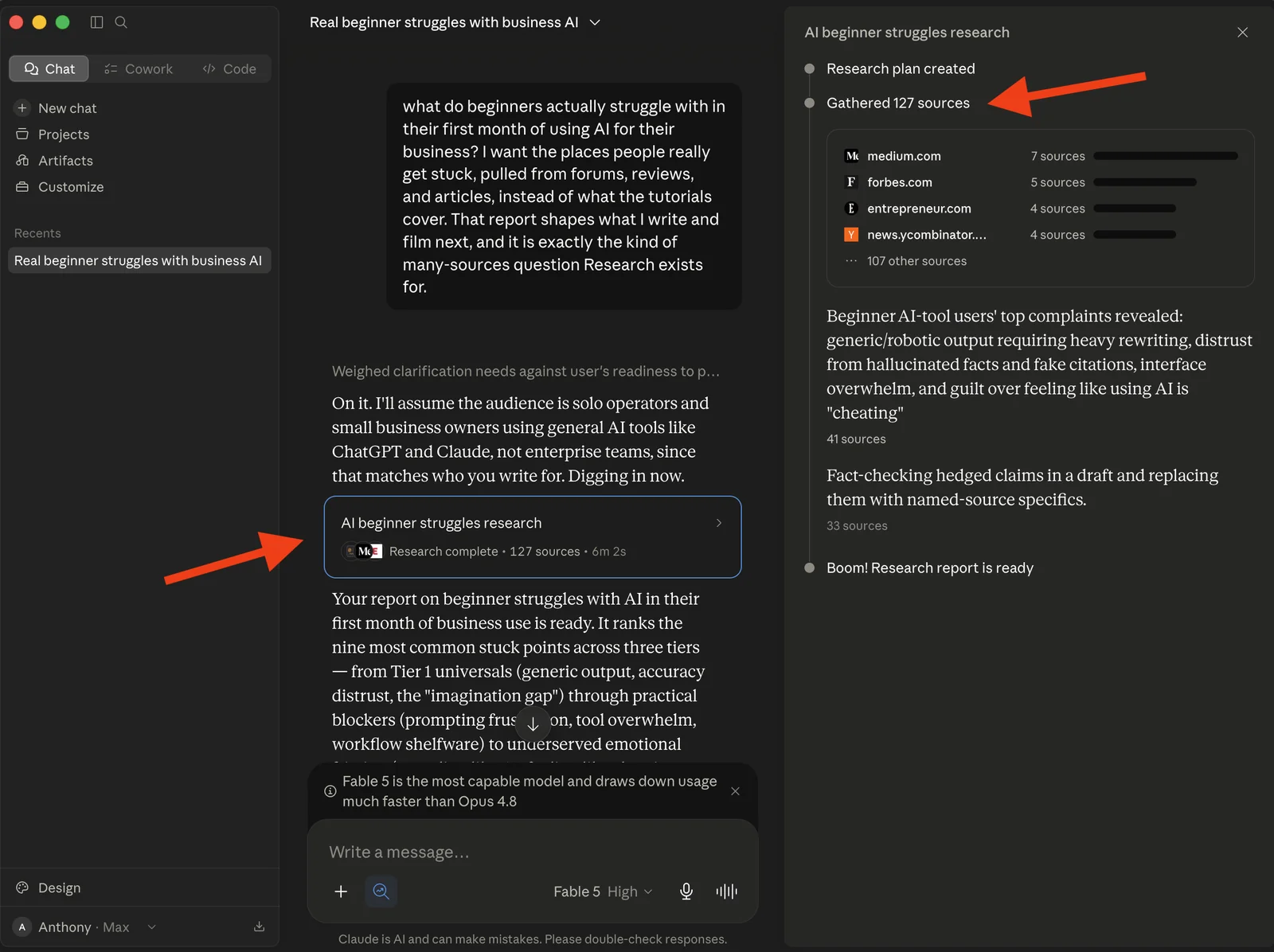
Claude planned the job, gathered 127 sources, and came back in about six minutes with a ranked report on the nine most common stuck points, pulled from review sites, forums, and small business surveys.
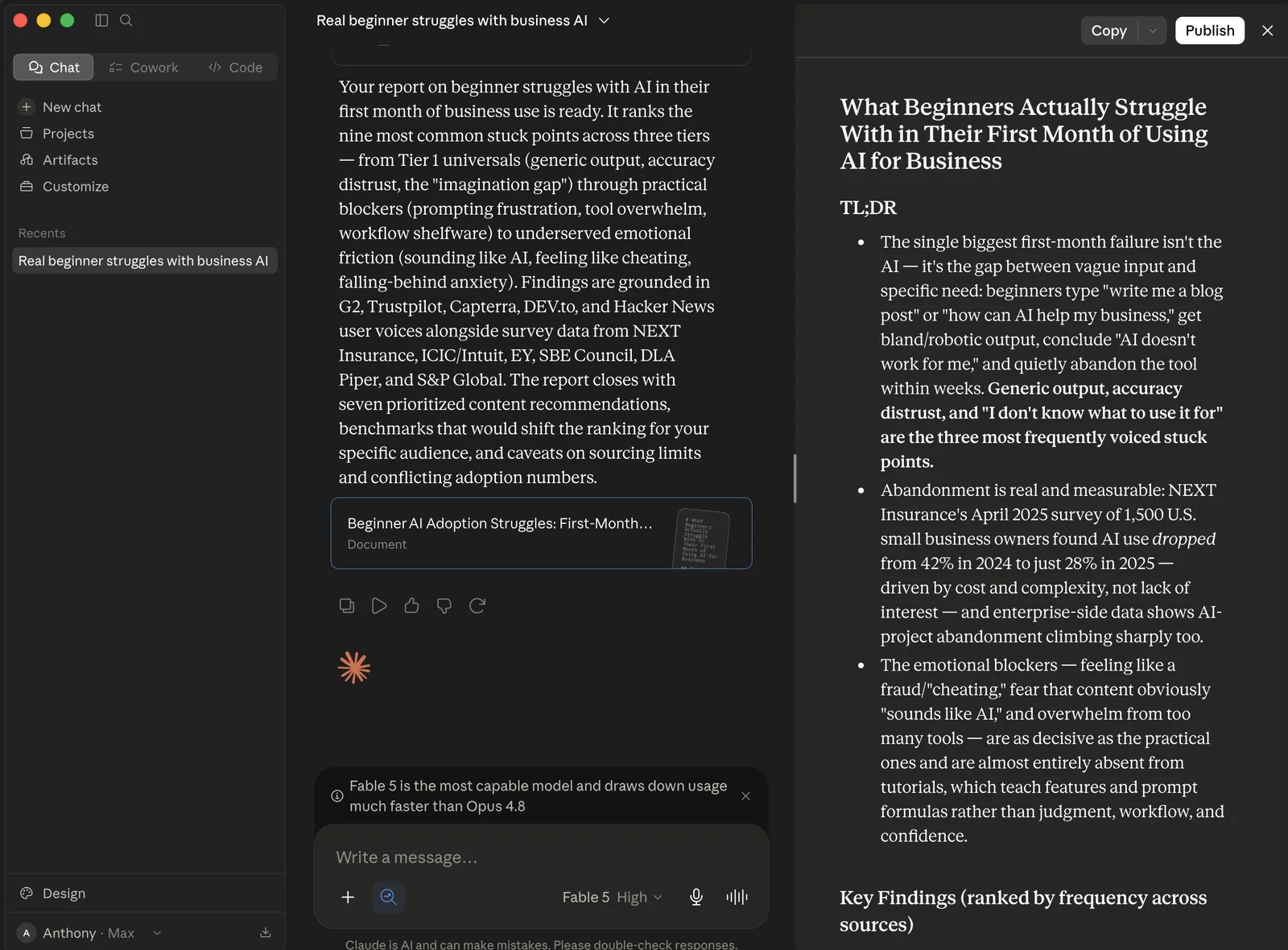
The finding that stuck with me: the things that make beginners quit, like generic answers, not trusting the output, and feeling like using AI is cheating, barely show up in the tutorials that are supposed to help them. That one report now shapes what I write and film next. If a question has been sitting on your someday list because the digging felt too heavy, that is your first Research run.
One quick word of caution
The citations make this easy to trust, but read them. Claude can still lean on a weak source or misread one, so before a Research report drives a real decision, click through the claims that matter and check the sources yourself.
Two smaller things: Research uses up your plan’s usage limits faster than normal chatting, because it is doing a lot more work per question. And do not send it out for a quick fact, a regular chat gets you there faster.
Put This Into Practice
A vague question gets a vague report. “Research email tools” gets you a book report.
A specific version gets you a decision. The course teaches a simple structure for that: a specific goal, the sections you want back, and your constraints.
Copy this, fill in the brackets, turn on Research, and send it.
Research [the question, like “the best email marketing platforms for a small service business”]. My goal: [what decision this feeds, like “picking one to move my list to this quarter”]. Organize the report into these sections: [like “top options, pricing, strengths and weaknesses, what users complain about, recommendation”]. Constraints: [like “under $50 a month, must integrate with my website, English-language sources”].
And if you are not sure how to frame your question, ask Claude to help you write the Research prompt first, then run it. That is just using the tool well.
The whole thing in one line
Research mode is Claude doing the afternoon of digging so you get the cited report in minutes. Pick one question that has been too big to start, write it up with the prompt above, and go ahead and send Claude to the library. See what comes back.
~ Anthony
Frequently asked.
What is Claude's Research mode?
Research mode turns Claude into a systematic investigator. Instead of answering from one search, Claude plans an approach, runs many searches that build on each other, pulls in your connected tools if you have them, and delivers an organized report with citations you can check.
Is Claude's Research mode free?
No. Research is available on paid Claude plans (Pro, Max, Team, and Enterprise) on the web, desktop, and mobile apps. Web search has to be turned on for it to work.
When should you use Research mode instead of a regular chat?
Use a regular chat with web search for quick facts that need one or two sources. Use Research when the answer has to come from many sources, like comparing vendors, sizing up a market, or planning a big project, and you want citations you can check.
Stop re-explaining yourself to Claude.
Grab the free AI Starter Kit: my exact Claude setup, so it knows your business. Plus the lessons as they land.
Anthony Tran
13 years in marketing and an Air Force veteran. I use Claude every day to market and grow my own business, and I break down what works in plain English. Writing and recording from Arizona.