
If you spend half your Claude time copying things in and copying answers back out, connectors are the fix. Here is what they are, in plain English, and how to set up your first one.
What are Claude connectors?
A connector links Claude to a tool you already use, like your email, your calendar, or your files, so Claude can look things up and take action there for you. You sign in once, and from then on Claude can work with the real tool instead of only what you paste into the chat.
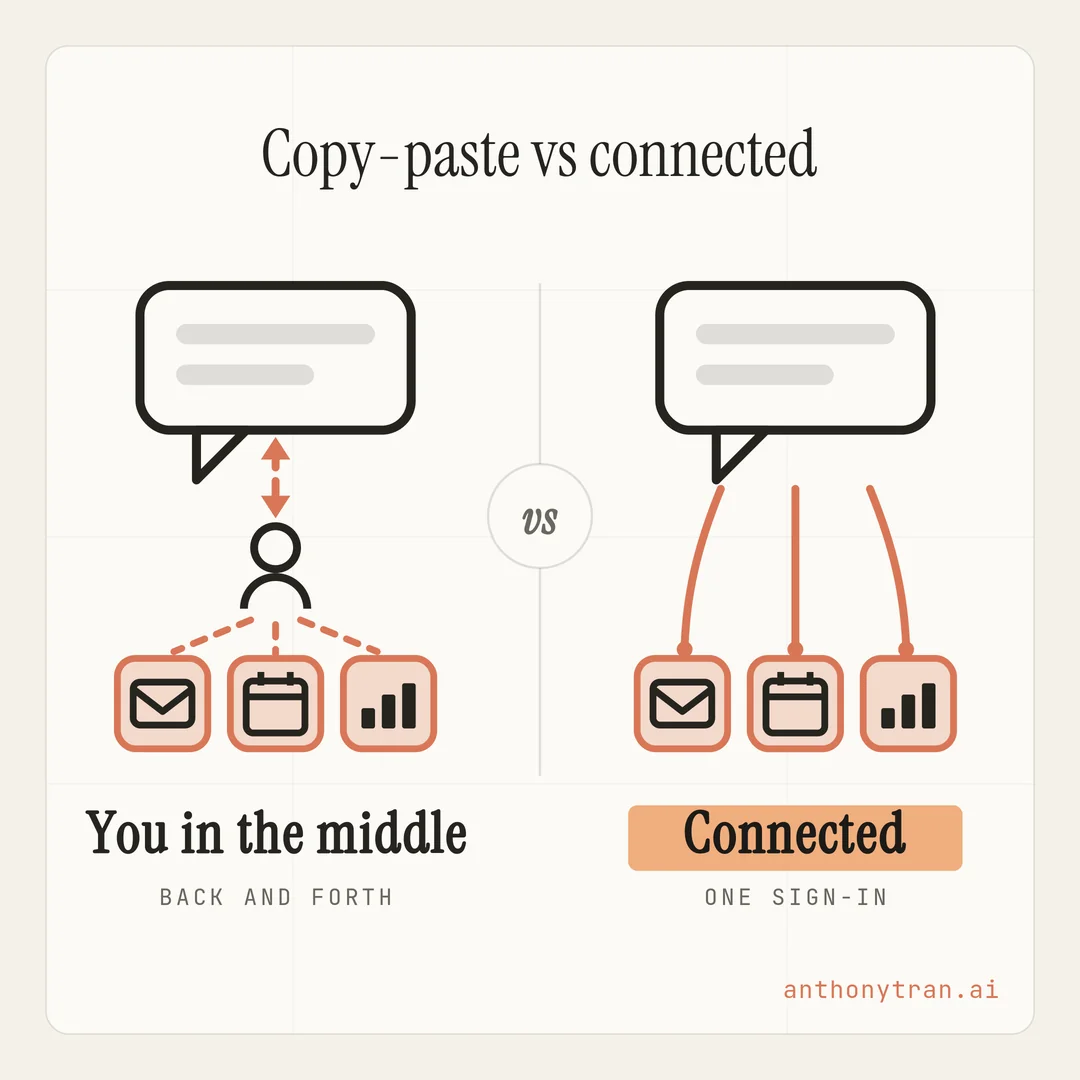
Here is the problem it solves. Out of the box, Claude only knows what you put in front of it.
So you end up playing messenger: copy the email in, copy the reply out, retype the numbers from your dashboard, repeat. Connectors end the messenger job.
Most of this comes from Anthropic’s free Claude 101 course, plus the current help docs, because this feature has grown since the course was recorded. I did that digging so you do not have to.
Think of it like a new coworker’s first day
Picture hiring a sharp new coworker. On day one they have no logins.
They cannot see the calendar, open the shared files, or check the inbox. So they keep asking you to look things up and read them the answer. Smart person, stuck working through you.
That is Claude without connectors. A connector is you handing that coworker their login. Now they can check the calendar themselves, find the file themselves, and just do the work.
One thing worth knowing up front: Claude works through your own account, with your permission, so it can only see what you can see. Connecting your work email does not give it anyone else’s inbox, just yours.
The tech behind all this is called MCP, and the people who built it compare it to USB-C, one standard plug that lets all kinds of tools connect the same way. That is all you need to know about it.
What changes once a tool is connected
Once a tool is connected, you just ask for things in a normal conversation and Claude uses the tool when the request calls for it. You do not have to name it every time. A few examples of what that looks like:
- Your calendar. “What does my week look like, and where is the open slot for a client call?”
- Your email. “Find the thread where we discussed the contract and draft a reply.”
- Your documents. “Search my Drive for last year’s proposal and summarize what we charged for.”
- Your business numbers. “Pull last month’s sales and tell me what changed from the month before.”
Every one of those used to be a copy-paste job. Now it is just a sentence. The first time you watch live data from your own business land in the chat, the whole thing clicks.
How I use connectors
Let me show you a real one. I plan my YouTube videos with keyword research from a tool called vidIQ. That research used to live in one window while Claude lived in another, and I carried the numbers between them by hand.
So I connected vidIQ to Claude. Now when I plan a video, Claude pulls the live search data right into the conversation while we work out titles and topics together.
Same tool, same data, no messenger job in the middle. That one connection changed how I plan videos, and it took a couple of minutes to set up.
One honest note if you want to copy this exact setup: vidIQ currently advertises its Claude connection as free for a limited time, but pricing can change, so check what your own tools include before you count on it.
How to connect your first tool
If you can sign in to a website, you can do this. Here is what you want to do:
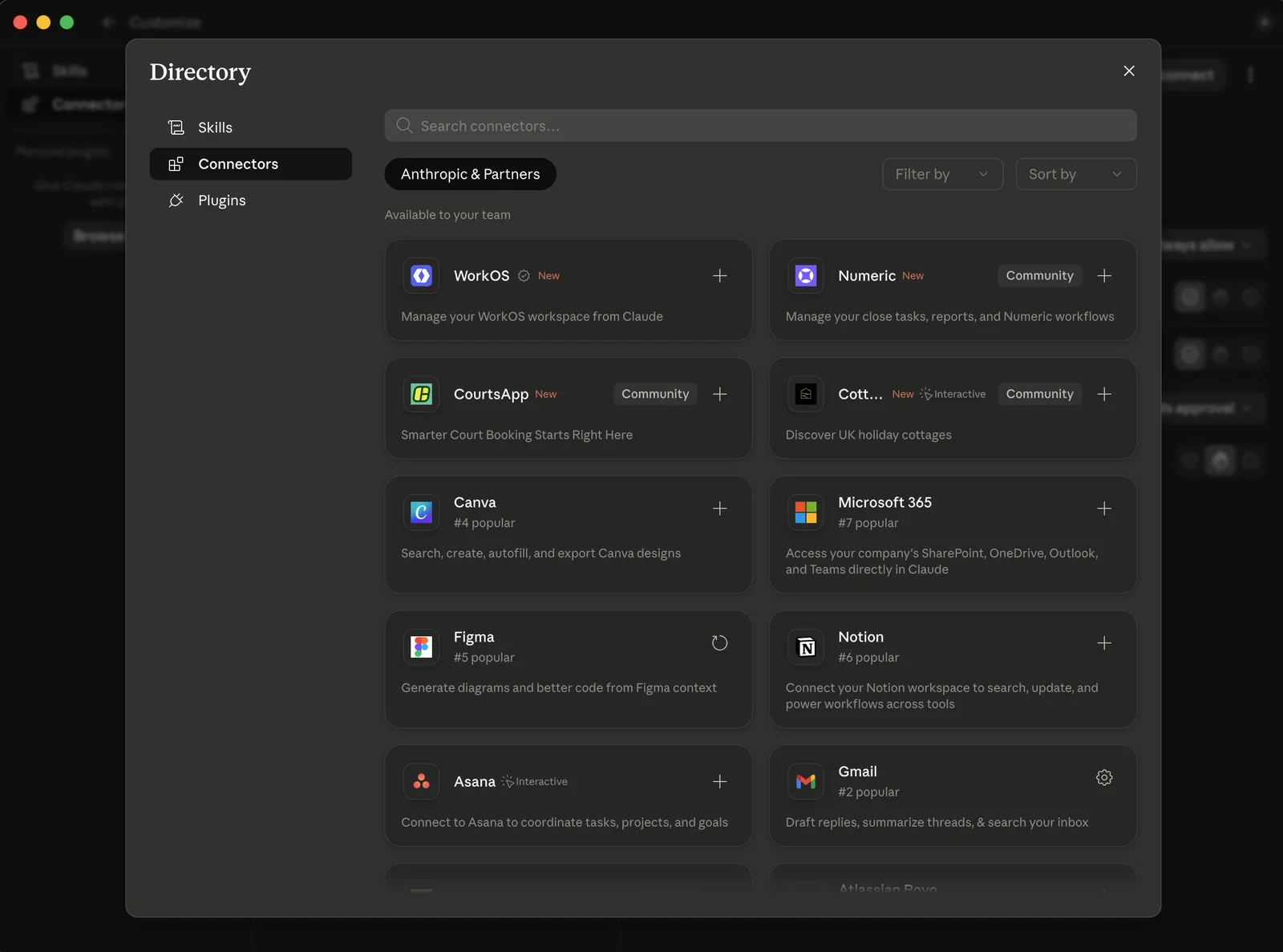
- Open the Connectors Directory at claude.ai/connectors, or click the Customize tab in the left sidebar and then Connectors.
- Browse or search for a tool you already use. Gmail, Google Calendar, Notion, Canva, and a long list of others are in there.
- Click Connect, then sign in with the account you already have for that tool.
- Review what access it is asking for, and approve it if you are comfortable.
- Test it with something simple, like “Can you see my calendar?”
Connectors are available on every plan, including free, though each connector lists its own availability, and on a Team or Enterprise account an admin may need to turn it on first. And if you use the Claude Desktop app, there is a second kind called desktop extensions that lets Claude work with things on your computer itself, like local files or desktop apps, depending on the extension.
You will find those in the app under Settings, then Extensions. Start with the web ones, though. They cover most of what a business needs.
When your tool is not in the directory
You might be wondering what happens when your favorite tool is not on the list. Fair question, because mine was not either.
Some tools publish a special link you can hand to Claude yourself. That is called a custom connector.
Go to the Customize tab, click Connectors, then Add custom connector, and paste in the name and the link from the tool’s website. That is exactly how I added vidIQ.
Every plan can do this too, though the free plan is limited to one custom connector.
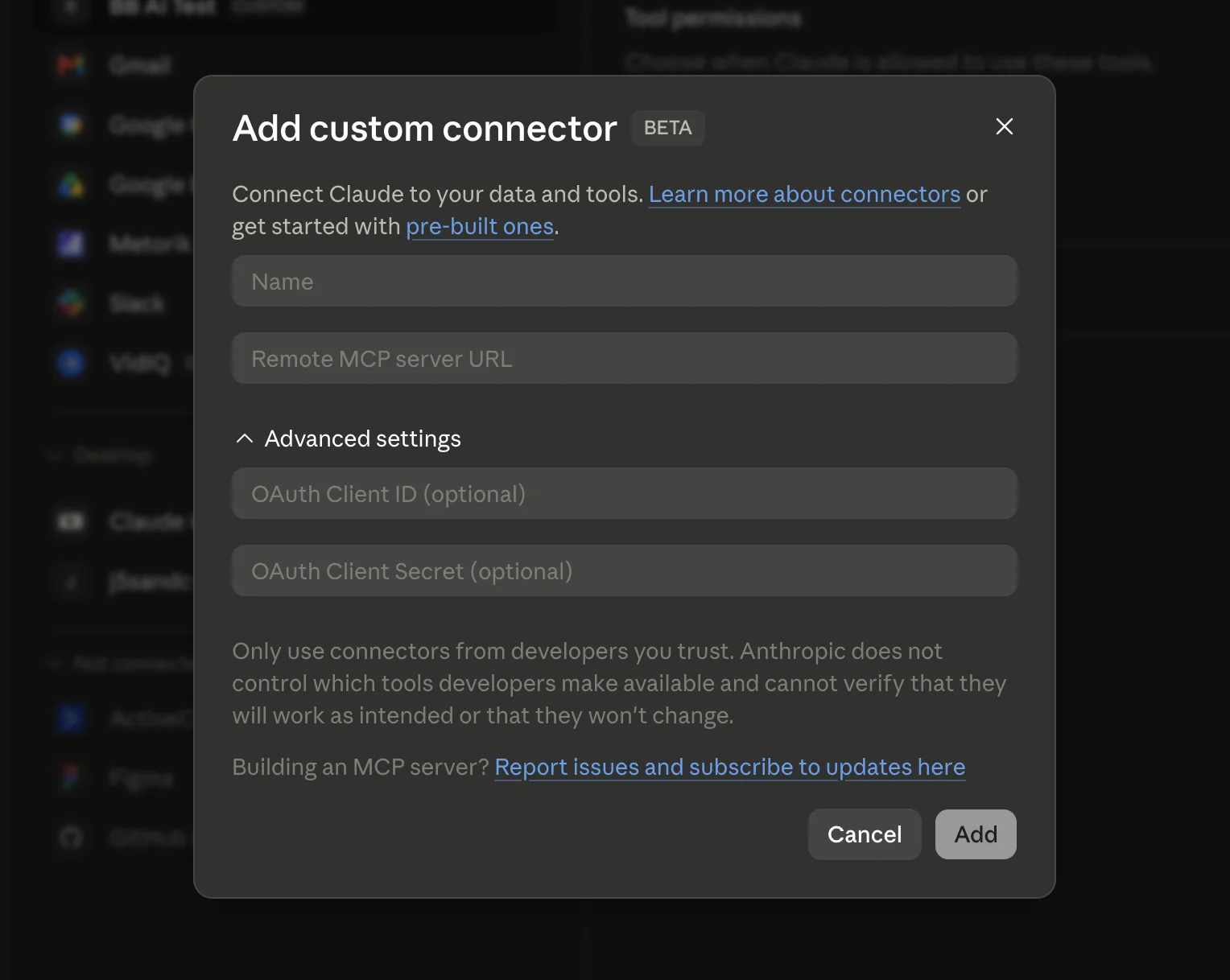
One rule here, and it is the same rule as Skills: custom connectors are not checked by Anthropic, so only add links from companies you trust. If the link did not come from the tool’s own website, do not paste it in.
One quick word of caution
Connectors can do more than read. Depending on what you approve, Claude can send, create, and change things in your tools.
That is the whole point, but it deserves a little care. Read what Claude is about to do before you say yes, especially early on, and double-check anything important before it goes out the door.
Two more habits that keep this clean. Start with one or two tools instead of connecting everything at once, and disconnect anything you stop using. It all lives in the same Connectors settings, and unplugging a tool takes a few seconds.
Put This Into Practice
Not sure which tool to connect first? Let Claude figure it out with you. Open a chat and paste this in.
I want to connect Claude to one of my tools using connectors. Here are the tools I use most: [list them, like Gmail, Google Calendar, Canva]. Ask me a couple of questions about where I lose the most time copying things between my tools and this chat. Then recommend the one tool to connect first, and give me three things to try in my first conversation once it is connected.
Answer Claude’s questions, connect the winner, and try the three things it suggests. You will know within one conversation whether it earned the spot.
The whole thing in one line
A connector gives Claude access to a tool you already use, so it can do real work there instead of asking you to fetch everything. Go ahead and connect one tool this week, then ask for something you used to copy-paste. That is the moment Claude stops being a chat window and starts being a coworker.
~ Anthony
Frequently asked.
What are Claude connectors?
A connector links Claude to a tool you already use, like your email, calendar, or files, so Claude can search it, pull real data from it, and take actions there for you. You sign in once, and Claude works with the live tool instead of only what you paste into the chat.
Are Claude connectors available on the free plan?
Yes. Web connectors are available to all Claude users, including the free plan. Custom connectors also work on every plan, though the free plan is limited to one custom connector at a time.
How do you connect Claude to your tools?
Open the Connectors Directory at claude.ai/connectors, or go to the Customize tab in the sidebar and click Connectors. Pick a tool, click Connect, sign in with your existing account, and review the access it asks for. Then test it with a simple request like asking Claude to check your calendar.
Stop re-explaining yourself to Claude.
Grab the free AI Starter Kit: my exact Claude setup, so it knows your business. Plus the lessons as they land.
Anthony Tran
13 years in marketing and an Air Force veteran. I use Claude every day to market and grow my own business, and I break down what works in plain English. Writing and recording from Arizona.