
You have a task you do the same way every week, and writing out the steps for Claude feels like more work than just doing it. Now you can record yourself doing it once, and Claude writes the skill for you.
What does it mean to record a Claude skill?
It means you stop typing out your process and show it instead. You hit record, do the task the way you always do it, talk through what you are doing, and Claude watches the recording and writes the skill for you.
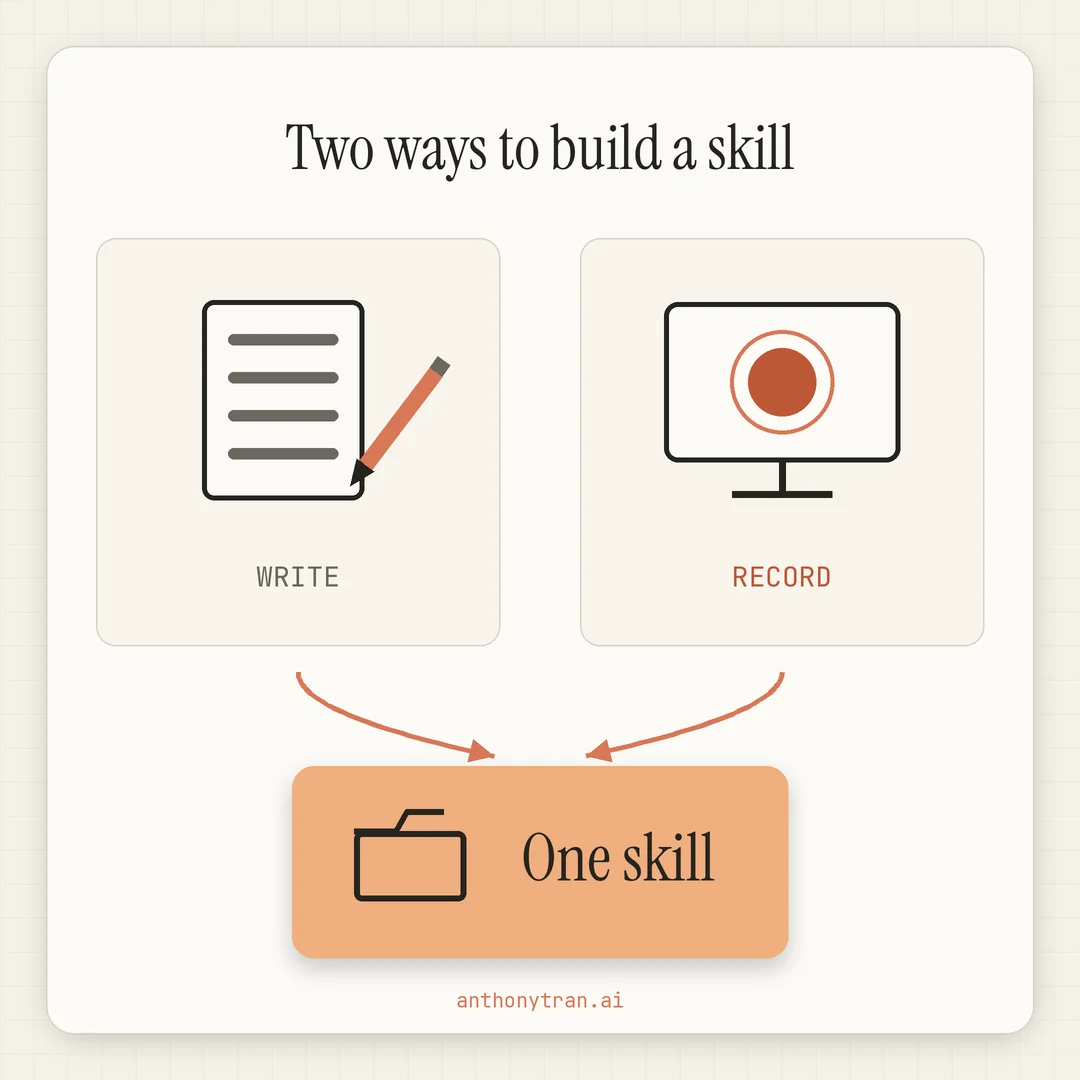
A skill is a saved playbook for a job you repeat. Until now you built one by writing it, either on your own or by going back and forth with Claude until the steps came out right.
Recording is a second door to the same room. What comes back is a proposed skill that you read and approve, so you still have the final say, you just did not have to write any of it.
And you do not have to be polished. Trust me, this is a working demonstration, not a course you are filming, so a few stumbles along the way are fine.
Anthropic added this recently, and there are real limits on where it runs, so I went through their docs to save you the digging. It works on the Pro, Max, and Team plans, inside Cowork in Claude for Mac. It is not in chat, not on Windows, and not on the Free or Enterprise plans, per Anthropic’s help docs.
The Loom videos I used to send my VA
Years ago I worked with a virtual assistant, and any time I handed something off, I would record a Loom video. Loom is just a screen recorder, so I would share my screen, walk through the task step by step, and talk through what I was doing and why.
Then I would send that recording over so nothing got lost in translation.
Writing the same instructions in a document never worked as well, because half of what matters is the small stuff you only notice when you watch somebody actually work, like the click they skip or the one field they change every single time.
That is exactly what this feature is, except instead of a virtual assistant, you are making the screen recording for Claude.
Where to find it
There are two ways in, and both take a few seconds.
Open Cowork in Claude for Mac, click the plus button in the message box, and pick “Record a skill.” Or go to Customize, then Skills, click “Add,” and choose “Record your screen.”
The first time you try it, macOS asks for two permissions: Accessibility so Claude can follow your mouse and keyboard, and Screen Recording so it can see your screen. It may ask you to restart Claude. You should only have to grant those once.
Then hit “Start recording” and leave the microphone on while you work. Your narration is where Claude picks up the things it cannot see on screen, like why you skip a step or how you choose between two options.
A capture bar sits on top while you go, showing that the recording is running and counting the steps it has picked up. When you finish, click “Done,” or click “Discard” to throw the whole thing away without creating anything.
One limit worth knowing up front: a recording can run about ten minutes. You get a countdown when you are close, and if it hits zero it sends whatever it captured, same as if you had clicked Done. If your process runs longer than that, break it into smaller pieces.
What happens after you click Done
Claude opens a Cowork task, watches the recording back, and comes back with a proposal.
You will get one of two things. Either a brand new skill, marked NEW on the card, or an update to a skill you already have, if the recording overlaps something already in your library.
Either way, expand “Content” on the card and read the thing before you decide. Then save it, update it, or dismiss it.
Go ahead and read it before you save. It takes a minute, and it is the difference between a skill you trust and one you are hoping is right.
The one I recorded
Every week I do video topic research using vidIQ. Same tool, same filters, same clicks, over and over again.
So I hit record, went through it exactly the way I always do, and talked through what I was doing and why I was doing it. Claude took the recording and built the skill from there, and it worked.
What surprised me was not that it worked, it was how little effort it took, because I did not write a single step.
Does this replace writing skills?
No, and I would not want it to. It gives you another option, and which one you reach for comes down to what you already have in hand.
If the process is still a rough idea living in your head, you are better off writing it, either on your own or by talking it through with Claude until the steps settle. That is the path I walk through in my post on how to build a Claude skill.
If you already have a process you run the exact same way every time, record it. That is where this fits perfectly, because you know the steps cold and typing them out is just busywork.
There is one more piece here that I think gets missed. The record-a-routine idea itself is not brand new, because Claude in Chrome already lets you record a browser task and save it as a shortcut Claude can run again.
The difference is what you walk away with. Chrome hands you a saved routine for the browser, and Cowork hands you a skill you can open, read, edit, and reuse across the rest of your work.
For me the Cowork version fits better, since that is already where my files and my context live. If most of your work happens in a browser tab, the Chrome one might be the better call for you.
Check your screen before you hit record
This is the part I want you to slow down on. Everything on your screen gets captured for the length of the session, along with anything you say out loud.
So before you start, close the tabs and apps you would not want in there. Passwords, financial details, private conversations, client information, all of it.
And do not type a password or a login code while the recording is running, even into a field that hides the characters.
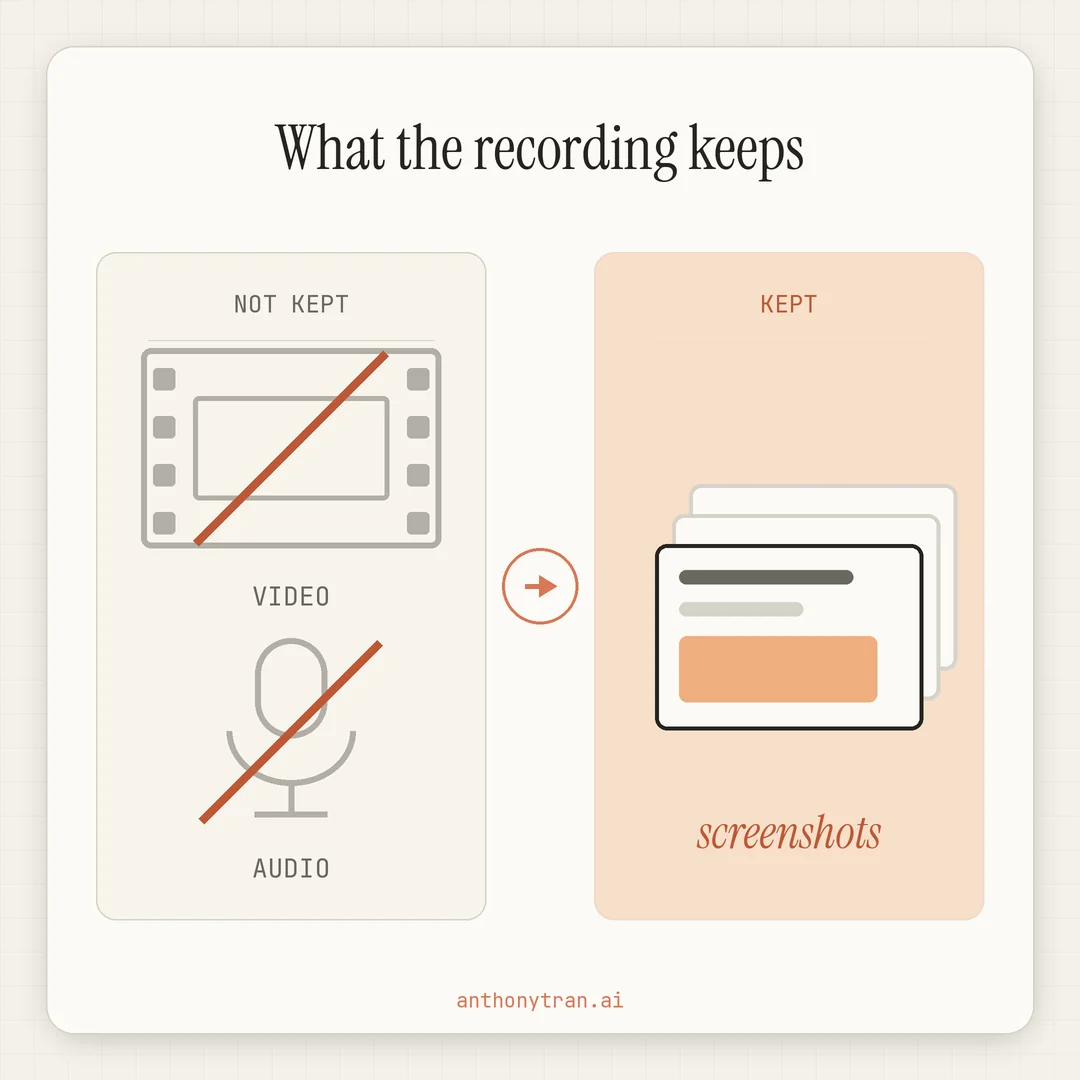
Anthropic says the video and audio from your recording are not retained. What does get saved is a set of screenshots from the session, and you can look at them inside the task by expanding the “Recorded demonstration” step.
Because those screenshots live in the task, deleting the task removes them too.
The other thing to keep in mind is that a recorded skill is still a set of instructions Claude follows, not a guarantee. It can misread a step or run your process on the wrong thing, so check the work before you act on anything that matters.
A ten-second look at your screen before you click record saves you a real headache later. It is the cheapest habit in the whole thing.
Put This Into Practice
Pick one task you already do the same way every week. Not the messy creative stuff, the boring repeatable stuff, like a research routine, a report you pull, a weekly cleanup.
Then record it once. That is the whole assignment.
If you are not sure which task to start with, paste this into Claude and let it help you pick.
I want to record a screen demonstration and turn it into a reusable Claude skill. Help me pick the right task to start with. Ask me these questions one at a time and wait for my answer before moving on:
- What tasks do you repeat at least once a week in your business?
- Which of those do you run the same way every time, with the same tools and the same steps?
- Roughly how long does each one take you, start to finish?
- Does any of them involve sensitive information on screen that I should not capture?
After I answer, recommend one task to record first and tell me why. If any of them would run longer than ten minutes, show me where to split it into smaller recordings.
The whole thing in one line
The best process to hand off is the one you could do in your sleep. You already know every step, you just never wrote any of it down.
Now you do not have to. Go ahead and record the next one and see what Claude gives you back.
~ Anthony
Frequently asked.
How do you record a Claude skill?
Open Cowork in Claude for Mac, click the plus button in the message box, and choose Record a skill. You can also go to Customize then Skills, click Add, and choose Record your screen. Hit start, do the task the way you normally would while talking through it, then click Done and Claude proposes the skill for you to review.
What plans can record a Claude skill?
Recording a skill works on the Pro, Max, and Team plans, inside Cowork in the Claude desktop app for Mac. It is not available in chat, on Windows, or on the Free and Enterprise plans.
Does Claude keep your screen recording?
Anthropic says the video and audio from the recording are not retained. What gets saved is a set of screenshots from the session, which you can view inside the task under Recorded demonstration. Deleting the task removes those screenshots too.
Stop re-explaining yourself to Claude.
Grab the free AI Starter Kit: my exact Claude setup, so it knows your business. Plus the lessons as they land.
Anthony Tran
13 years in marketing and an Air Force veteran. I use Claude every day to market and grow my own business, and I break down what works in plain English. Writing and recording from Arizona.