
Some of your work lives in a browser tab that has no Claude connector: a dashboard, a portal, a web app behind a login. Claude in Chrome is the bridge. It reads and clicks those pages for you, then hands the results back to Cowork to finish the job.
What is Claude in Chrome?
Most of the time, you give Claude access to your tools through connectors, the direct links to your email, your drive, your calendar. But plenty of work lives somewhere a connector cannot reach: a reporting dashboard, a vendor portal, a web app your team built, much of what sits behind a browser and a login. That is the gap Claude in Chrome fills.
It is a browser extension that lets Claude read, click, type, and move around web pages the way you would, right there in your browser. And it works hand in hand with Cowork.
Claude does the part on the web, brings the results back, and builds the finished thing in Cowork. One conversation, two surfaces.
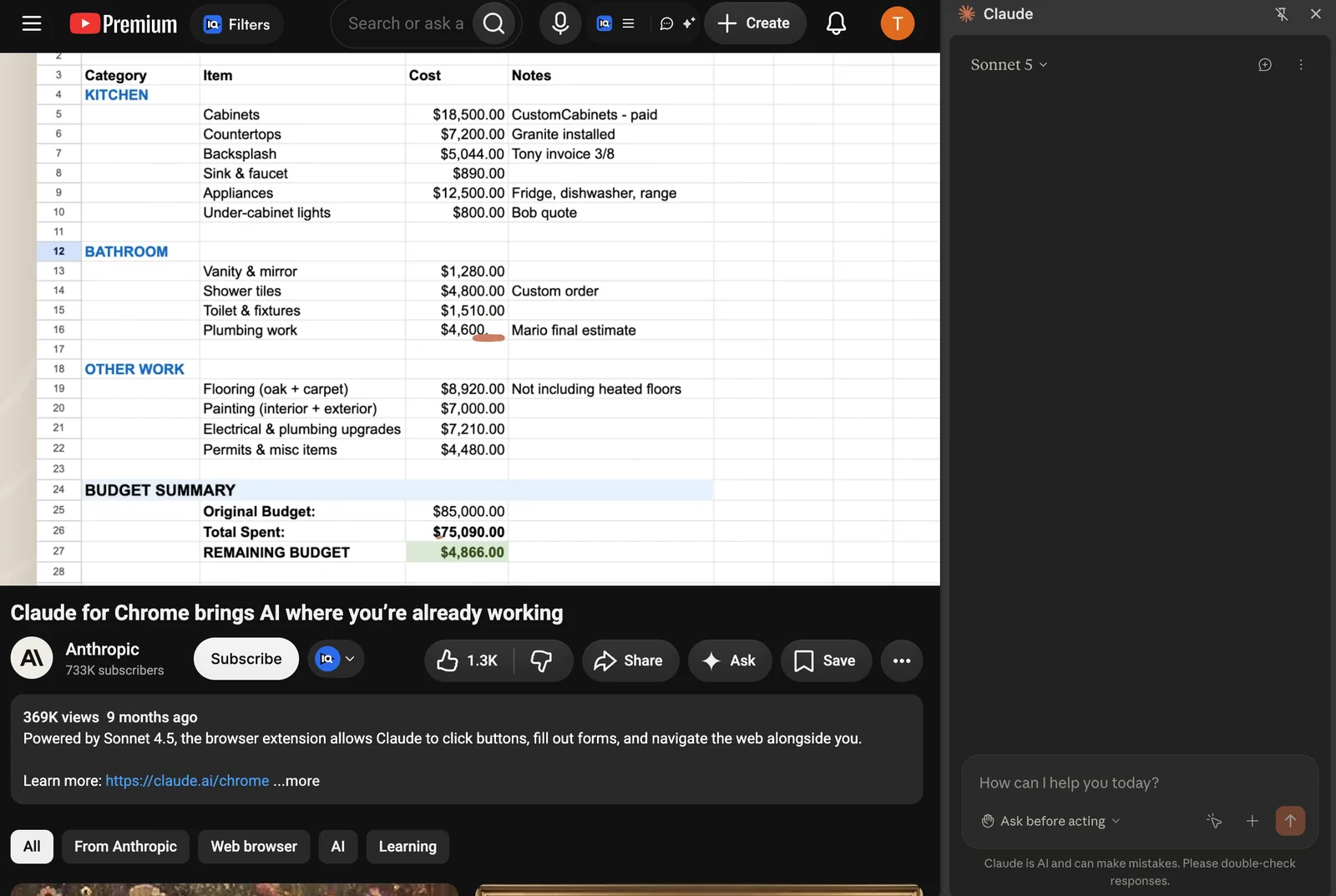
A couple of things to know up front. Claude in Chrome runs on all paid plans.
It works inside Cowork today, along with Chat and Claude Code, while the standalone browser side panel is still in beta. It runs in desktop Google Chrome only.
You turn it on yourself: you install the extension and switch it on for the task, since it stays off by default. And on Team or Enterprise plans, your admin may decide whether it is available at all and which sites it can reach.
What it unlocks
Here is the simplest way to know when you need it. Any time you catch yourself thinking “I would love to hand this to Claude, but it lives on the web,” this is the answer. A few real ones:
- Dashboards with no export. The reporting tool where you eyeball a number every Monday. Claude can open it, pull the figures, and feed them into a Cowork task.
- Portals and systems behind a login. The client portal, the CRM behind single sign-on, the tool with no API. Claude can navigate it and pull what you need.
- Web research that ends in a document. Ten tabs open, and you want one clean brief. Claude reads each page and writes the brief, with no copy-paste.
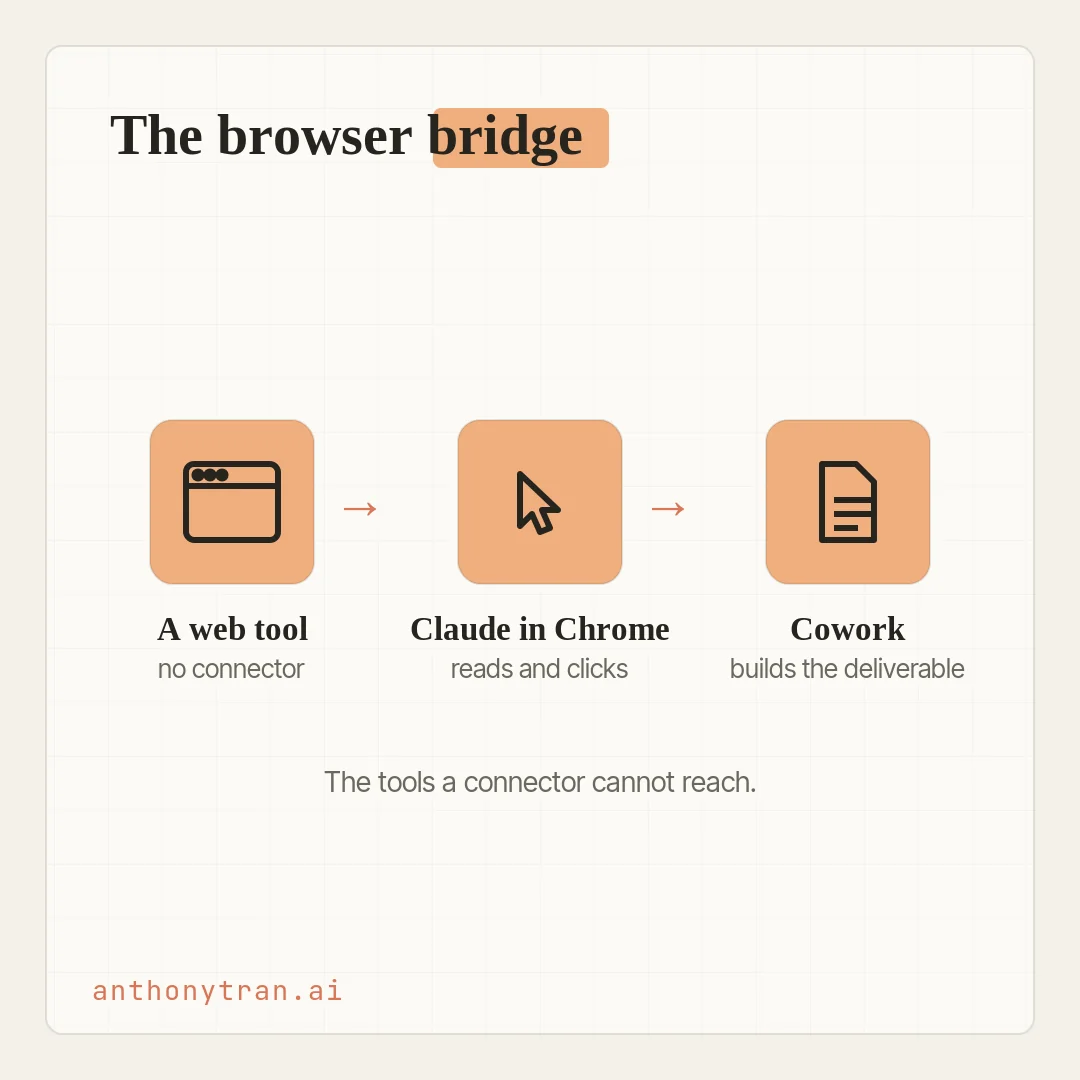
That is the whole shape of it: Claude works the page, then Cowork turns what it found into the thing you actually needed.
How I actually use it
Let me tell you the one use I keep coming back to, because it surprised me. Claude in Chrome lets you teach it a routine. You record yourself doing a task once, in the browser, and it turns that into a reusable workflow it can run again.
I had a tedious job: copying pieces from a document into a website that had no connector, so Cowork could not reach it on its own. I walked Claude through the steps one time and saved it. After that, it takes over the mouse and the browser and does the whole thing itself.
The other time it earned its keep was troubleshooting. I was stuck on a client’s website, digging around in Cloudflare, a tool I did not really know.
So I let Claude navigate it. Through the extension it clicked through the settings while I watched and approved each step, and it worked out what was wrong.
When you are lost in an unfamiliar dashboard, having Claude navigate it for you is worth a lot.
A couple of honest notes, because it is not magic. Keep the task simple.
Hand it something too involved and it can lose the thread or stall, and it moves slower than you would. A recording is not set-and-forget either.
If the site changes its layout, it can break, and you re-teach it. So what I do is keep the browser open on one side of my screen and let it run while I work on something else, glancing over now and then to make sure it is on track.
It is like handing a boring chore to an assistant. Not perfect, but it takes the tedious stuff off my plate, and that is exactly what I want from it.
The mistake most people make
Here is the one thing most people get wrong, and it is the difference between this feeling underwhelming and feeling powerful. They click the Claude icon in the browser and use it right there on its own. That standalone side panel is working from the page in front of it, without the files, project context, and history that make Claude’s answers feel like they were made for you.
Run the browser work through your Cowork desktop app instead, connected to your business files, and it changes. Claude does the same browsing, but now it can pull in what you have given Cowork about your business and goals to shape the result.
Here is a small example from my own use, not a lab test. I asked Claude to research a new car.
From the browser side panel, it handed me the specs and a comparison. Through Cowork, where it had my business context, it pushed back: a new car would not move the needle for my business, and since I work from home, I might not even need one.
Same task, but the Cowork version had more to work with. That is why I point my browser work through Cowork.
Stay in control
This is powerful, and that is exactly why a little care matters. You are letting an AI act inside your browser, where you are already signed in to everything.
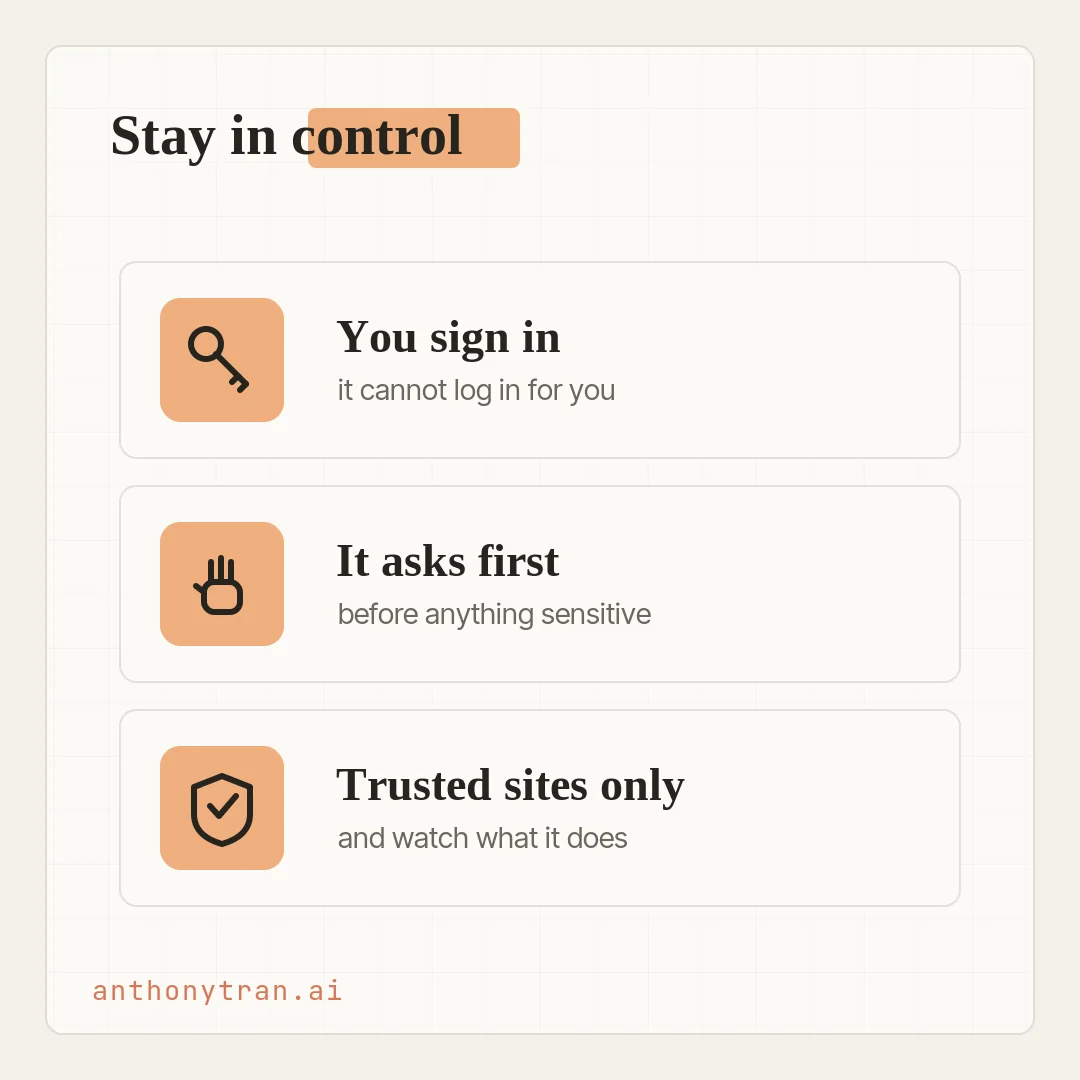
Start with the basics. You sign in to sites yourself, and you handle any password, passkey, or captcha, since Claude works inside the session you are already logged into.
Start in Manually approve mode, where it shows you a plan and asks before it acts. It will always pause to ask before things like downloading a file or entering sensitive info.
And some things it will not do at all, no matter the mode: making a purchase, moving money, trading, creating accounts, solving a captcha, or permanently deleting your stuff. Some pages, like adult or pirated-content sites, are blocked outright.
One risk is worth knowing by name: prompt injection. A web page, an email, or a form can hide instructions meant to trick Claude into going off your task, even on a site you trust.
So if it wanders to a page you did not ask for, starts talking about something unrelated, or asks for something odd, stop it right there. That is the tell.
Two more habits. It reads a page by taking screenshots of the tabs it is working in, so whatever is visible there becomes part of the chat.
Do not point it at a page with anything private on it, and if you use it a lot, a separate Chrome profile with only your work accounts is a smart move. And keep it away from the high-stakes stuff: your money, your health records, legal documents, anything regulated.
Whatever it does in your browser is on you, so treat it like a sharp new assistant with the keys. Helpful, but supervised.
Put This Into Practice
Pick one task on your plate that lives in a browser tool with no connector, something small and low-stakes. Open Cowork, describe the job, and let it work in Chrome while you watch.
Using Claude in Chrome, open [the web tool] and pull [the specific thing you need] from it. Do not visit other sites, submit forms, or download anything without asking me first, and show me your plan before you act. Then build me [the deliverable] back in Cowork, and include the source links so I can check it. This is a first test, so keep it simple.
Watch it work the page, check what it brings back, and you will feel where it fits your week.
The bridge to the rest of the web
So here is where it lands. Connectors cover the tools with a clean link.
Claude in Chrome covers many of the pages behind a login that used to be off-limits. It reads and clicks for you, hands the results to Cowork, and can even learn a routine you save and reuse.
Start with one small browser chore this week. Watch it run on one side of your screen while you do something better with your time. That is the whole point.
~ Anthony
Frequently asked.
What is Claude in Chrome?
Claude in Chrome is a browser extension that lets Claude read, click, type, and navigate web pages right alongside you. It is the bridge for tools that do not have a connector: many things that live behind a browser, like a dashboard or a portal, it can work with. It teams up with Cowork, doing the browser part and handing the results back to build the deliverable.
Who can use Claude in Chrome?
It is available on all paid plans (Pro, Max, Team, and Enterprise) and runs in desktop Google Chrome only, not other browsers or phones. It works inside Cowork today, along with Chat and Claude Code, while the standalone browser side panel is in beta. On Team and Enterprise plans, your admin may control whether it is on and which sites it can reach.
Is Claude in Chrome safe to use?
It carries real risk, since it acts inside your logged-in browser, so use it with care. Start in Manually approve mode so it shows a plan and asks before it acts, sign in and clear any captcha yourself, and point it at sites you trust. The main thing to watch for is prompt injection, where a page or email hides instructions to trick it, so stop the task if it goes somewhere you did not ask. It reads a page by screenshotting the tabs it is working in, so do not point it at anything private, and keep it off your bank, health, and legal accounts. Some actions it will not do at all, like making a purchase, moving money, trading, or permanently deleting your stuff.
Can Claude in Chrome open any website?
No. It works with many sites where no connector exists, as long as you are signed in and the site is allowed and compatible. Some sites are blocked, and no matter the setting it will not make purchases, move money, or trade. On a team plan your admin can also limit which sites it is allowed to touch.
Stop re-explaining yourself to Claude.
Grab the free AI Starter Kit: my exact Claude setup, so it knows your business. Plus the lessons as they land.
Anthony Tran
13 years in marketing and an Air Force veteran. I use Claude every day to market and grow my own business, and I break down what works in plain English. Writing and recording from Arizona.