
Cowork already asks before it deletes, and before it sends or shares in the default mode. That is the floor. Real safety is the part you add on top, and it comes down to three simple habits.
Your part in keeping Cowork safe
Cowork comes with real guardrails. It always asks before it permanently deletes a file, and depending on the mode you pick, it pauses to ask before other actions too.
That is a good floor, but it does not cover everything: a bad edit, a misleading instruction, a confirmation clicked too fast. The rest is your part, and it comes down to three habits.
Limit what it can reach. Say clearly what you want.
And keep an eye on the run. Get those three right and Cowork stops being something you are nervous about and becomes something you can hand real work to, without pretending the risk is ever exactly zero.
Habit 1: limit what it can reach
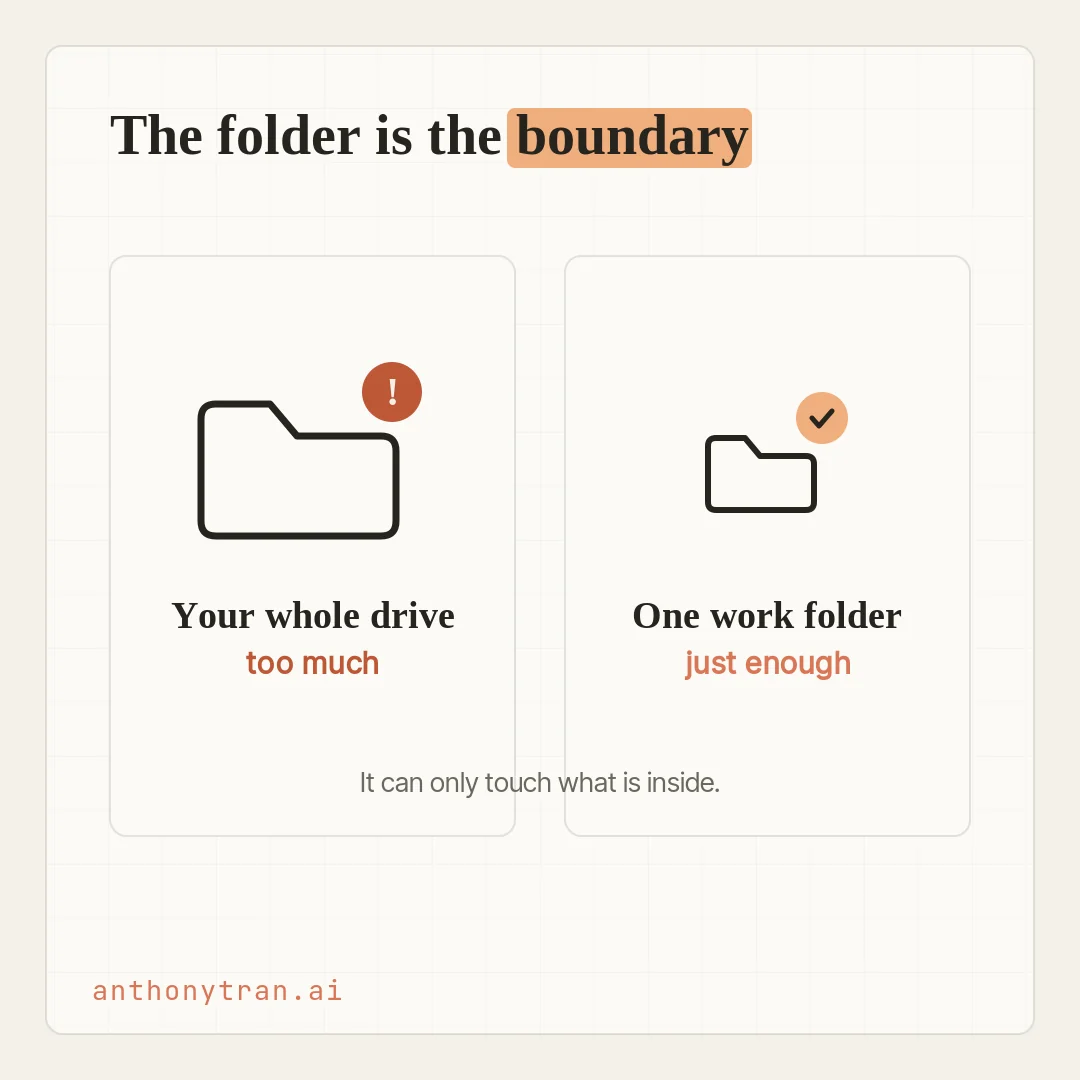
Start by keeping Claude’s reach small. The folder you give it is the boundary for the local files it can open, so make that folder a tight one.
- Use a dedicated working folder, not a catch-all. Pointing Claude at your Documents, Downloads, or Desktop is like letting a new hire rummage through every file you own. Make a folder for the job, put in what the task needs, and point Claude there.
- The folder is not the only door. Cowork can also reach the connectors, browser, and apps you switch on. So turn on only the connectors a task needs, keep them read-only when the job is just research, and be careful with unfamiliar plugins. If you let it use your computer directly, close anything private first.
- Back up anything irreplaceable, outside the folder. Deleting is not the only way to lose a file. A normal edit can overwrite or mangle one without ever counting as a deletion. So if a file matters and you could not recreate it, an old client deliverable, a contract you cannot have reissued, keep a copy somewhere Cowork cannot touch, and lean on version history.
- Test new workflows on a copy. Building a scheduled task that runs every Friday? Aim the first run at a copy of the data. Once you have watched it behave, point it at the real thing.
One more thing worth knowing. Even when Cowork opens a file from your computer, the actual work happens on Anthropic’s servers, not on your machine.
For everyday work that is fine. For anything confidential or regulated, follow whatever data rules you are held to, and do not assume a local folder means the file never leaves your computer.
Habit 2: write prompts that leave no room for the wrong action
How you ask matters as much as where you point it.
- Be specific about destructive words. “Cut the section” could mean hide it or delete it. “Update the file” could mean rewrite it or add to it. If the wrong reading cannot be undone, spell it out: “Remove the section from the draft, but keep the file.” “Add a new appendix, do not rewrite what is there.”
- Name the bounds. “Only the three most recent files in this folder.” “Only the contracts that closed in Q3.” “Draft only, do not message anyone.” Boundaries in the prompt narrow what Cowork does and give you a clear line for spotting drift.
- Break in scheduled tasks slowly. A scheduled task runs while you are not watching, and it can use every connector and tool you have on. So run the exact job by hand first, have it draft rather than send, and check the first few runs from the Scheduled panel. Do not put money, messages sent as you, or sensitive files on a schedule until you fully trust it.
Habit 3: watch the run
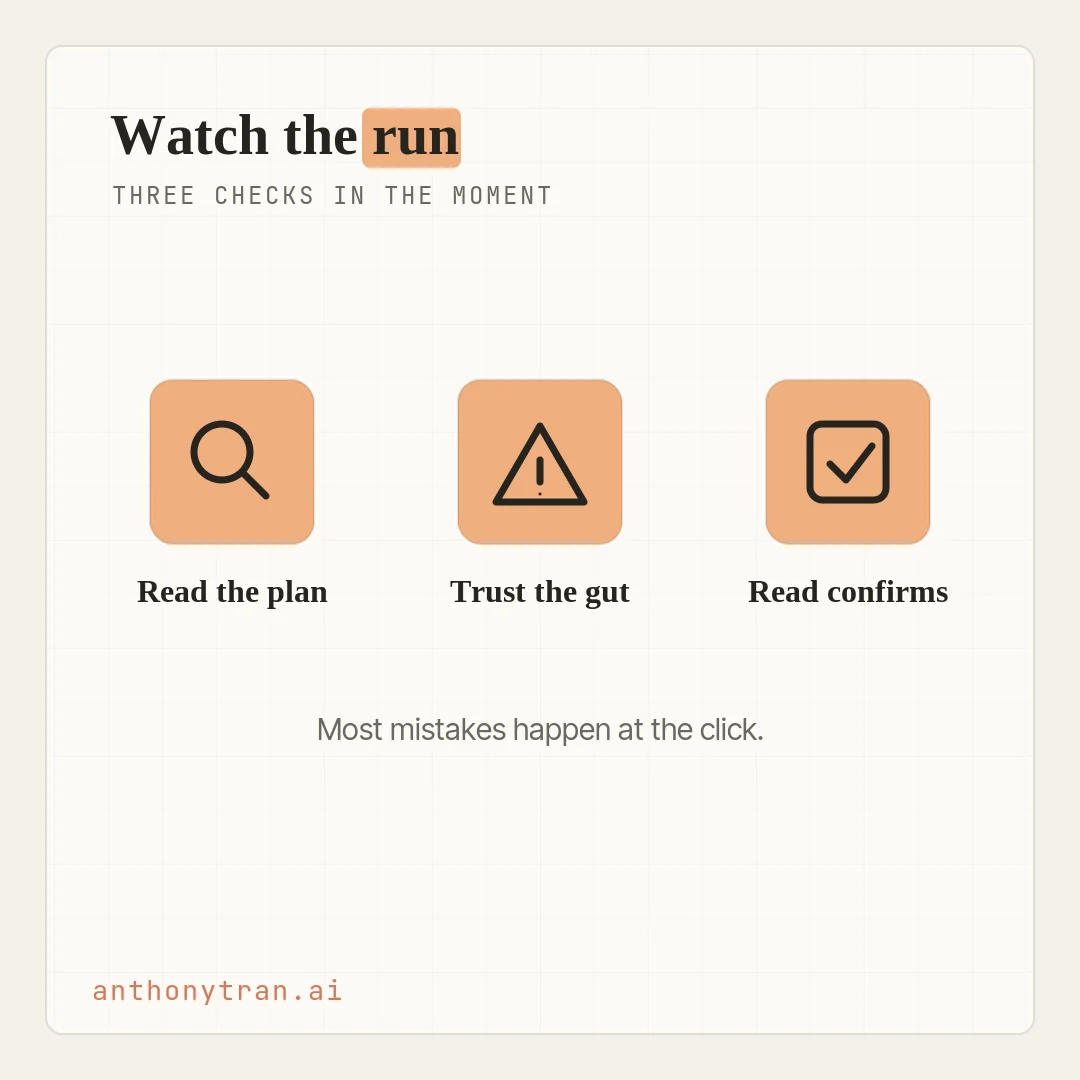
For anything with stakes, keep Cowork on Manually approve, the mode where it pauses for your okay, and stay nearby. A few quick checks catch most of the drift.
- Read the plan or the steps. As Claude works, it shows you what it is doing. Skim it. Do the steps make sense, in the right order, using the right sources? Redirect if not.
- Trust the “something feels off.” You do not have to inspect every step. But if it is touching files or sites you did not mention, or the scope is creeping past what you asked, stop it. That gut feeling is a real signal.
- Read the confirmation before you approve it. A lot of mistakes are not a safeguard failing. They are someone clicking through a confirmation that was not quite the action they meant. The dialog is there because the action matters, so treat it that way.
One risk is worth naming, because it is easy to miss: prompt injection. A website, an email, or a document can hide instructions written to trick an AI into going off your task.
It gets riskier when a job mixes outside content with the power to change or send things. So when Claude is reading unfamiliar material, keep its write access narrow, stay on Manually approve, and watch closely. If it suddenly does something you did not ask, stop it.
When Cowork is not the right tool
Part of using it well is knowing when to close it. A few cases where I reach for something else, or just do it myself:
- Regulated work with real logging or retention rules. Cowork activity is not in the Compliance API right now, and while a team can pipe some events out to their own tools, that may not meet every audit rule. If you are held to those kinds of requirements, check with your compliance people before you use it for that work.
- Anything you would not hand a sharp new colleague to do unsupervised. Sending a legal doc to the other side, posting the public announcement, pushing a customer-facing change. Claude can prepare it. You ship it.
- Highly sensitive personal data, unless it is inside a boundary your IT team has actually approved.
How I keep mine safe
Here is my own setup, and how I got to it. When I started, I took baby steps.
I kept it on Manually approve, the mode where it pauses for my okay on everything, not because I did not trust it, but because I wanted to see what it was doing and learn. I also made a point of telling it not to overwrite or move my files without checking first.
And I keep my connectors tight. With Gmail, it can read, but I do not let it send anything as me. I want my own eyes on every email that goes out.
Over a couple of months I got more comfortable, as I saw what it could and could not do. The dedicated folder helps a lot.
My whole AI Brain lives in one place, so I know everything Claude touches on my computer stays inside it. And that folder is backed up to the cloud through Obsidian and GitHub, so if my computer died tomorrow, nothing is lost.
The rest is just talking to it. If a run heads somewhere I do not like, I stop it, or I ask it to pause and explain what it is doing.
That habit alone has saved me more than once. Cowork has honestly changed how much I get done.
It is the only Claude tool I use now, and none of these habits get in the way. They are what let me hand it real work in the first place.
Put This Into Practice
Before your next real Cowork task, take two minutes and run through four questions.
Reach: which folders, connectors, browser, and apps can Claude get to right now, and does it need all of them for this? Recovery: am I working on a copy, or do I have a backup outside the folder that I know how to restore? Action: does my prompt make the difference clear between drafting and sending, and between adding and overwriting? Oversight: is this task big enough that I should be on Manually approve and watching?
Four questions, two minutes, and you clear out a lot of the avoidable risk before you even start.
Safe is a habit, not a setting
So here is where it lands. Cowork’s guardrails are the floor.
The safety you can feel comes from three habits on top: limit what it can reach, say clearly what you want, and keep your eyes on the run. Use Manually approve for anything real, back up what matters, and read the confirmations.
Do that a few times and it stops being a checklist. It just becomes how you work. You do not make the risk disappear, but you get most of the speed with a lot less of the worry.
~ Anthony
Frequently asked.
How do you use Claude Cowork safely?
Three habits carry most of it. Limit what it can reach: a dedicated folder with only what the task needs, plus only the connectors and apps the job requires. Write tight prompts that name what it should and should not touch. And keep it on Manually approve for anything with stakes, read the plan, and read each confirmation before you approve. It always asks before permanently deleting a file, but a normal edit can still overwrite one, so keep a backup outside the folder.
What folder should you give Claude Cowork?
A dedicated working folder that holds only what the task needs, not Documents, Downloads, or your Desktop. Copy in what is required and point Claude there. That folder is the boundary for the local files Claude can open, so keep it tight. Just remember it is not the only door: the connectors, browser, and apps you switch on are a separate kind of access, so keep those to what the task needs too.
When should you not use Claude Cowork?
For regulated work with strict logging or retention rules, check with your compliance team first, since Cowork activity is not in the Compliance API right now and the available logging may not be enough. Skip it for anything you would not hand a sharp new colleague to do unsupervised, like sending a legal doc or posting a public announcement. Claude can prepare it, but you ship it. And keep highly sensitive personal data out of it unless your IT team has approved that use.
Stop re-explaining yourself to Claude.
Grab the free AI Starter Kit: my exact Claude setup, so it knows your business. Plus the lessons as they land.
Anthony Tran
13 years in marketing and an Air Force veteran. I use Claude every day to market and grow my own business, and I break down what works in plain English. Writing and recording from Arizona.