
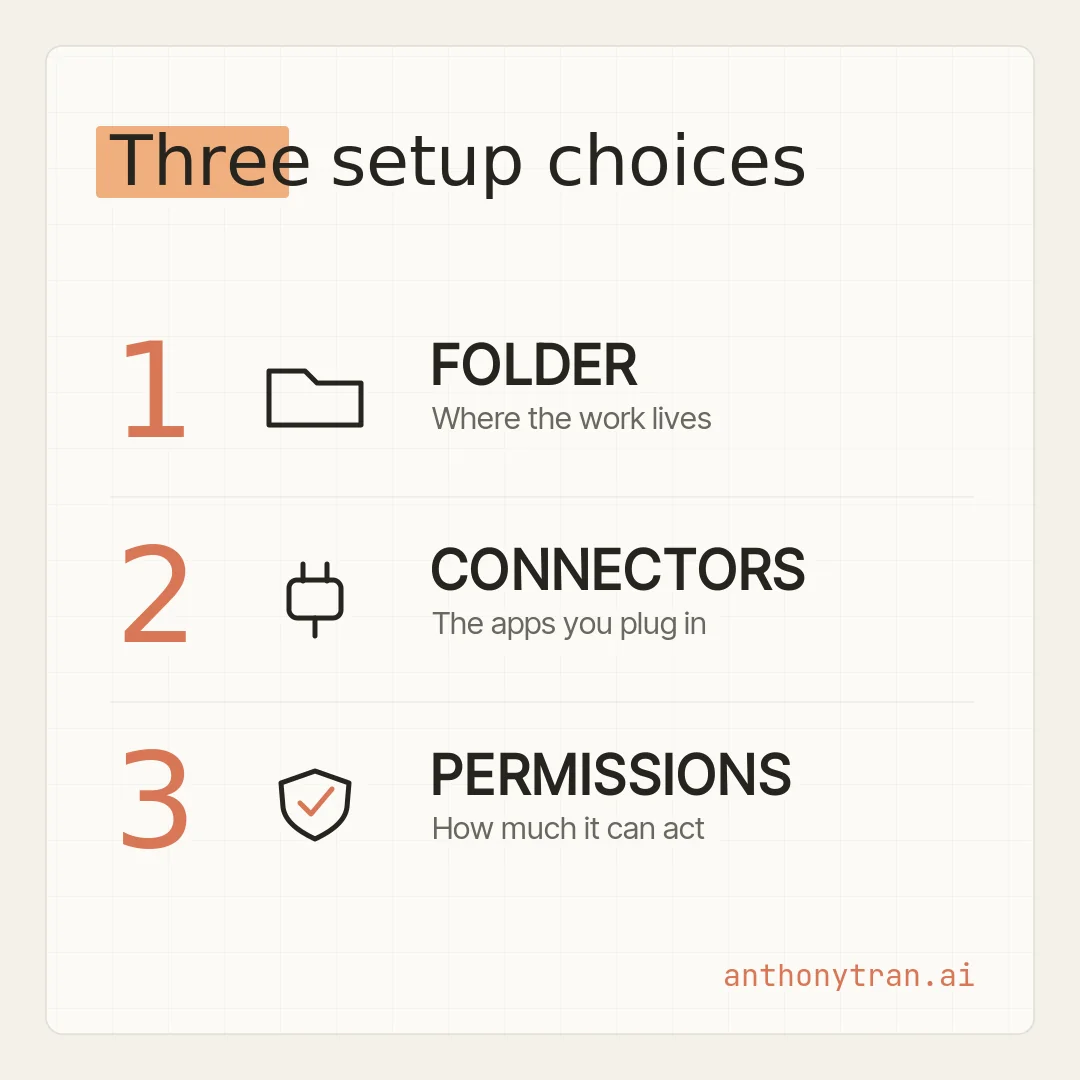
Setting up Claude Cowork is really three choices: the folder you point it at, the apps you connect, and how much you let it act on its own. Here is how to make each one.
How do you set up Claude Cowork?
For working with files on your computer, setting up Cowork comes down to three choices: the folder you point it at, the apps you connect, and how much you let Claude act on its own. You make those choices in the desktop app, and you can change any of them from one task to the next. The whole thing takes a few minutes, and none of it needs code.
I will walk you through each choice the way I set up my own, and end with a small first task so you can feel it work. Most of this comes from Anthropic’s free Introduction to Claude Cowork course, with a couple of details updated to how the product works today. If you are brand new, start with what Claude Cowork actually is, then come back here to set it up.
Before you start: install the app
Cowork lives in the Claude desktop app. Download it from claude.com/download, install it, and sign in.
Then find the Chat and Cowork toggle in the message box and switch it to Cowork. If you do not see it, you likely need a paid Claude plan or a newer version of the app.
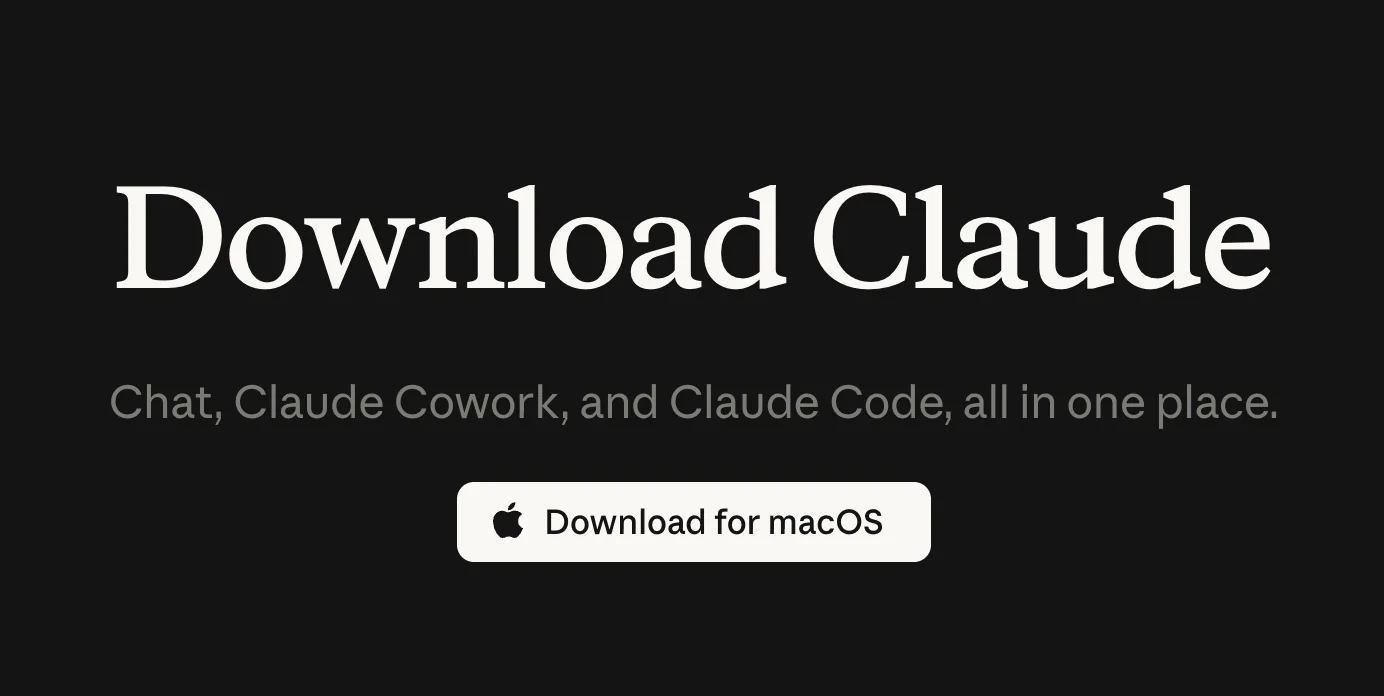
Cowork also runs on the web and your phone now, and your tasks follow you across them. But the setup we are doing here, pointing Claude at a folder on your computer, happens through the desktop app. So install that first.
Choice 1: Pick the folder (the one that matters most)
This is the big one. In Cowork you pick a folder on your computer for Claude to work in, and that folder becomes its workspace for the job.
Claude can read and change any file inside it, your Word docs, your spreadsheets, your PDFs, and it can save its finished work right back into it. That read-and-write is the real jump from Chat.
In Chat, Claude works with what you hand it and can make files for you to download. In Cowork, it works directly in your folder, so there is no uploading and downloading in between.
Here is the habit that keeps this safe: pick the smallest folder that holds what the task needs. Claude does not need your entire Documents folder.
It needs the one project folder for the thing you are working on. You can always add another folder later if a job reaches past it.
For me, that folder is my AI Brain, a vault I built on purpose to hold my business context: my notes, my brand voice, my project files. It is broad, but it is all work material built for exactly this.
That is a deliberate tradeoff, and if you are just starting I would not copy it. Do the safer thing and point Cowork at one project folder, ideally a backed-up one or a copy, and keep passwords, financial records, and private client files out of whatever you connect.
One privacy detail is worth knowing here. Even though the folder sits on your computer, Cowork does its work on Anthropic’s servers, so a local file it opens gets pulled up there to be worked on. For everyday work that is fine, but before you connect anything sensitive, check your plan’s privacy settings first.
Choice 2: Connect your apps
Connectors are how you give Claude access to the tools where your work already happens: your email, your calendar, your messages, your cloud storage, even a CRM. You set them up once in the Customize area, then switch on just the ones a task needs.
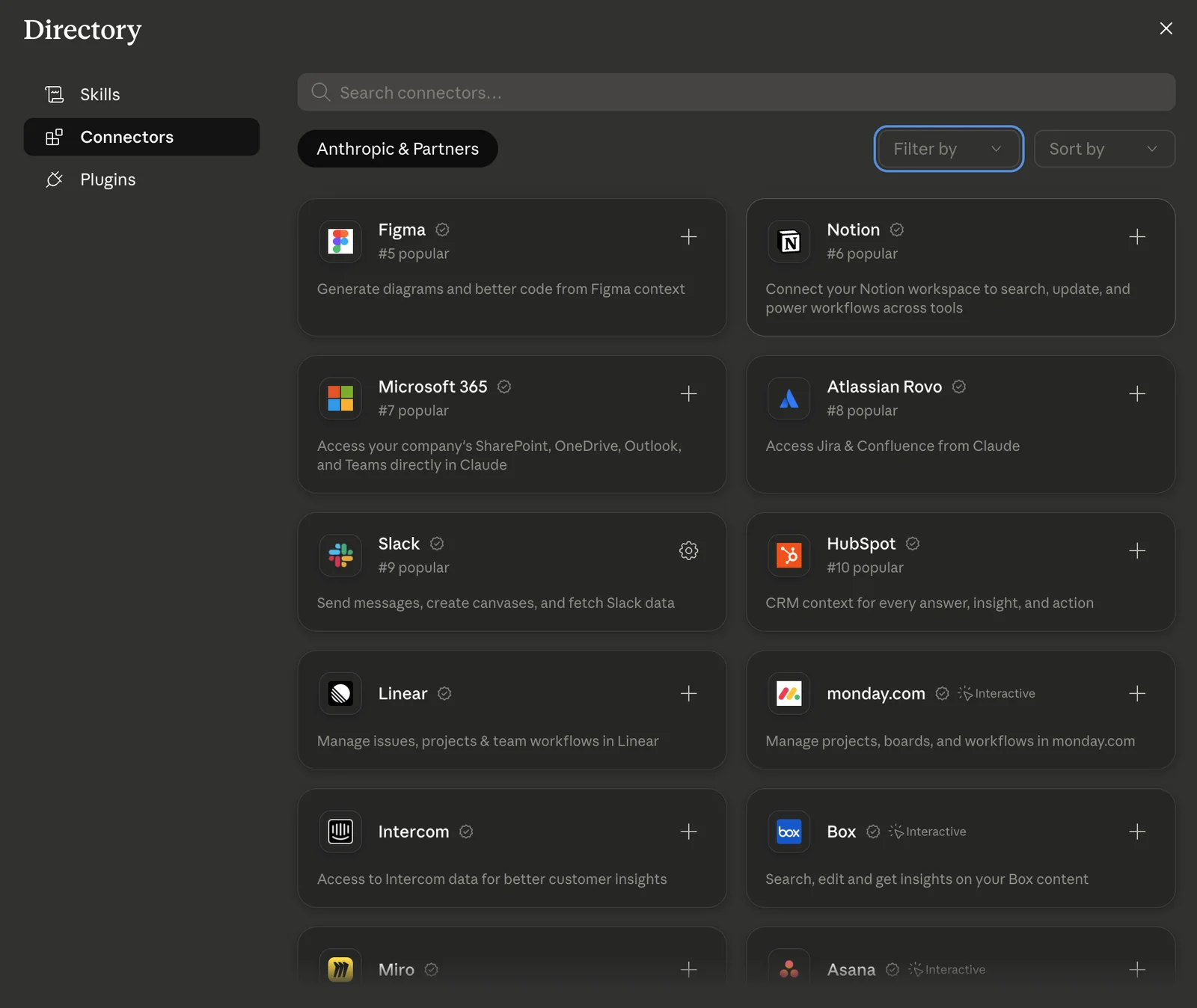
The ones most people plug in first are email and calendar (Gmail or Outlook), team messaging (Slack or Teams), and cloud storage (Google Drive, OneDrive, or Box). Once a connector is on, you just mention it in plain English, like “check what the team said in Slack about the launch,” and Claude knows where to look.
If a tool has no connector, like an internal dashboard or a portal behind a login, Claude can sometimes still reach it by working in your browser. That feature is newer and slower than a connector, and it is a lesson for later. For now, just know that “no connector” does not always mean out of reach.
Choice 3: Decide how much it can act on its own
This is the setting that lets you match how much Claude does on its own to how risky the task is. Cowork lets you choose how often it checks with you before it acts, and it has three modes.
- Manual asks before it acts. Claude pauses and waits for your okay on anything that touches the outside world, like sending an email or sharing a file. (If you have already set a specific connector to always allow or always block, it just follows that.)
- Auto runs on its own, but it runs a safety check on each action and blocks anything that looks unsafe. It is faster, and it uses more of your Claude allowance.
- Skip just goes, with no pausing and no checks. Only use it for tasks and tools you completely trust.
One rule holds in every mode: Claude always asks before it permanently deletes a file, and you cannot turn that one off.
I keep mine on Manual. I would rather approve each real action than find out about it after the fact.
No setting makes it fully hands-off and worry-free, but Manual gives you the most control. That is the whole trust equation for me: a scoped folder, the right apps, and Manual approvals. Start there, and loosen up only once Cowork has earned it.
Try it: your first hand-off
The best way to understand any of this is to do it once. Here is a small first task, based on the one from the course, that proves your setup works and shows you what Cowork actually feels like.
- Point Claude at a real folder, a live project you are working on this week. If you would rather not use the live one yet, copy the files into a new folder and use that. Use real material, not toy files.
- For this first test, you can leave connectors off. The task below only needs the folder, and it is good practice to give Cowork just what a job requires.
- Ask Claude to go through the folder. Paste the prompt below.
- Read what it gives you and check it against what you already know. What did it catch that you missed? What did it get wrong?
Take a look at everything in this folder and write me a short brief on what you found. Cover what is in here, how the files relate to each other, and anything surprising or unclear. Save the brief as a new file in this folder, do not change my original files, and flag anything you are not sure about instead of guessing.
That one exercise is the moment setup turns into something real.
Three choices, then you delegate
So that is the whole setup. The folder you point Claude at, the apps you connect, and how much you let it act. Get those three right and Cowork stops feeling like a black box and starts feeling like handing work to a sharp assistant who has your context and checks with you before doing anything real.
Pick one real folder tonight and give it that first small task. That is all it takes to start.
~ Anthony
Frequently asked.
How do you set up Claude Cowork?
Cowork runs on paid plans across desktop, with web and phone rolling out. To work with files on your computer, install the Claude desktop app, sign in, and switch the message box toggle to Cowork. From there it is three choices you can change per task: point Claude at a folder, connect the apps you need, and pick how much it can act on its own. It takes a few minutes and needs no code.
What folder should you give Claude Cowork?
Pick the smallest folder that holds what the task needs, like one project folder, not your whole Documents folder. Claude can read and change any file in it and save finished work back into it, so a tight, scoped folder keeps things safe. Use a backed-up folder or a copy, and you can always add another folder later.
Is it safe to let Claude Cowork act on its own?
No mode removes all risk, but you control how much Claude does on its own. Manual asks before each action, Auto runs on its own with an automatic safety check, and Skip runs with no checks. In every mode, Claude asks before permanently deleting a file. Start on Manual for anything with real stakes and keep an eye on the task.
Stop re-explaining yourself to Claude.
Grab the free AI Starter Kit: my exact Claude setup, so it knows your business. Plus the lessons as they land.
Anthony Tran
13 years in marketing and an Air Force veteran. I use Claude every day to market and grow my own business, and I break down what works in plain English. Writing and recording from Arizona.