
Not every task is worth handing to Claude Cowork. The good ones share three shapes: they take several steps, they live in your files, or they span your tools. Here is how to spot them.
What can Claude Cowork do for you?
Here is the honest answer: not everything. Cowork is powerful, but the win is not handing it every little thing. The win is learning to spot the tasks it is built for, so you hand off the right ones and stop wondering if this is a good fit.
The good ones share three shapes. They take several steps.
They lean on a set of files. Or they span the tools you already use.
Learn to spot those shapes and you have a solid gut check for what is worth handing off.
Most of what follows comes from Anthropic’s free Introduction to Claude Cowork course, plus how the product actually works today and what I have learned using it every day. If you are brand new, start with what Claude Cowork is and how to set it up, then come back here.
The three shapes of a good Cowork task
Almost every task worth handing off shows one or more of these signs. The more of them a task has, and the easier the result is to check, the better the fit.
Shape 1: the task takes several steps. If a job means gather, then compare, then draft, then format, it is a fit. You might normally do that as a string of separate prompts, holding all the pieces in your head. In Cowork you hand over the whole arc in one go. Point it at a week of customer emails and ask it to sort them into themes with a quote for each. It reads, groups, drafts, and formats, then shows you the result.
Shape 2: the task leans on a set of files. This is the one that surprises people. Cowork does not just make you a new document to download. It reads your real files, works on them, and saves the finished thing right back. Those files might sit in a folder on your computer, in your Claude account, or in a drive you connect. Think a client proposal built from your own template and your meeting notes. Or a monthly report pulled together from the spreadsheets you already have. Real files in, real file out.
Shape 3: the task spans your tools. The work touches the apps where you already operate: your email, your calendar, Slack, your drive, your CRM. Once you connect those, Claude reaches into them and pulls what it needs. Some connections only let it read, others let it act too, and that depends on the tool and the access you give it. Ask it to draft follow-up emails after a meeting using the invite, the attendee list, and your notes. It pulls the context from all of it and drafts the whole thing in one go, for you to review, instead of you jumping tab to tab.
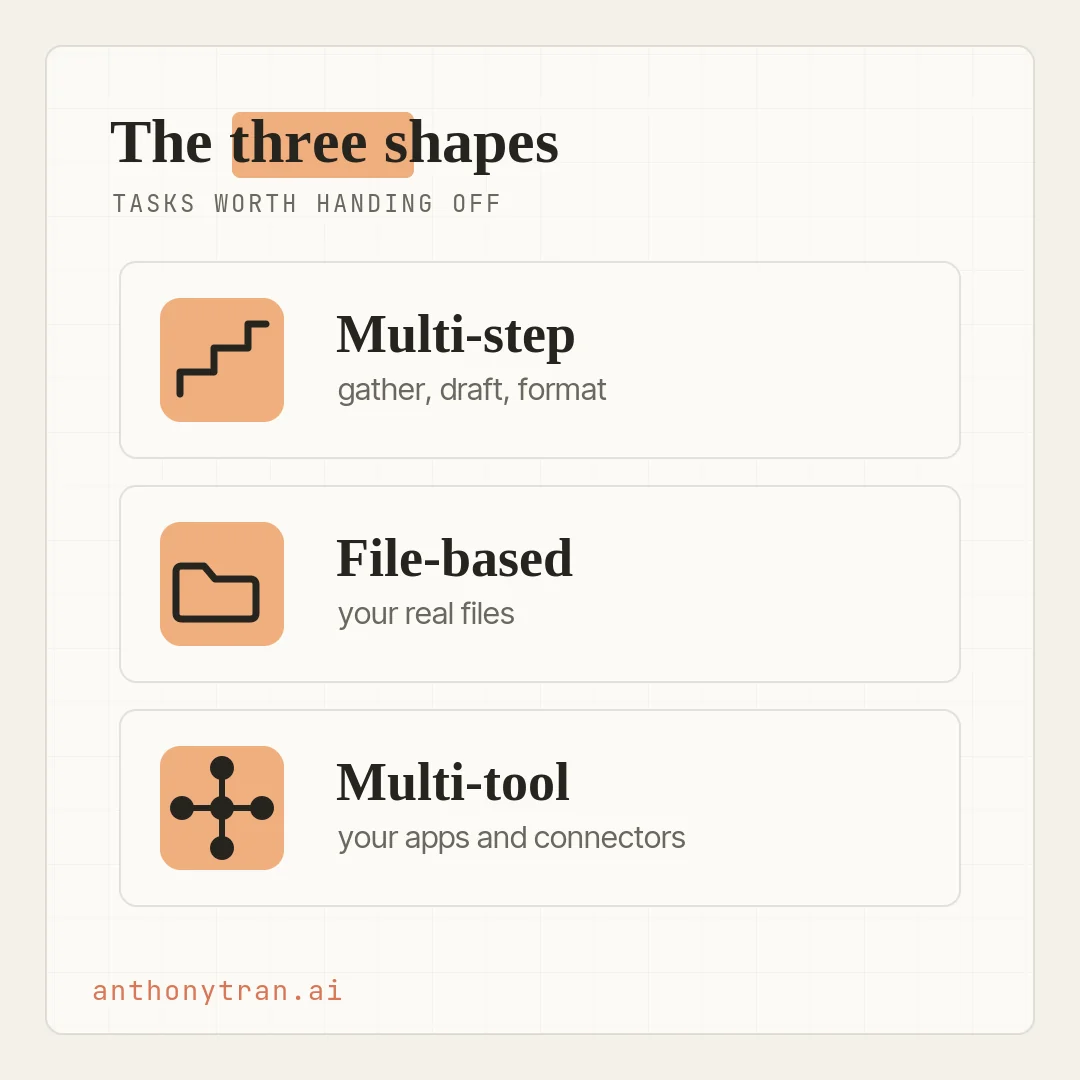
The through-line is the same across all three. Work that used to mean juggling steps, files, and tools in your own head can now be handed off as one task. When you spot that shape, give it to Cowork.
What is not worth handing off
The flip side matters too. If it is a one-step question, just ask it in Chat.
That is lighter and faster. And go slow with anything vague, hard to undo, or full of private information Cowork does not need.
The best first jobs are small, easy to check, and low-risk if something goes sideways.
One boundary to keep no matter what: give Cowork only the files and tools the job actually needs. Emails, shared docs, and web pages can hide instructions written to trick an AI, so for anything that sends a message or changes a shared file, keep Claude on Manual and watch it work.
Set it once, let it run: scheduled tasks
So far we have talked about tasks you start at your desk. But some work repeats.
That is where scheduled tasks come in. You describe a job once, pick how often it runs, and Claude handles it from then on without being asked again.
The easy way to set one up is to do the task once, check that the result looks right, then type /schedule in the chat. Claude turns that same job into a recurring one.
Pick a cadence: hourly, daily, weekly, on weekdays, or only when you ask. Then review the prompt and confirm.
You can also manage all of them from the “Scheduled” panel on the side.
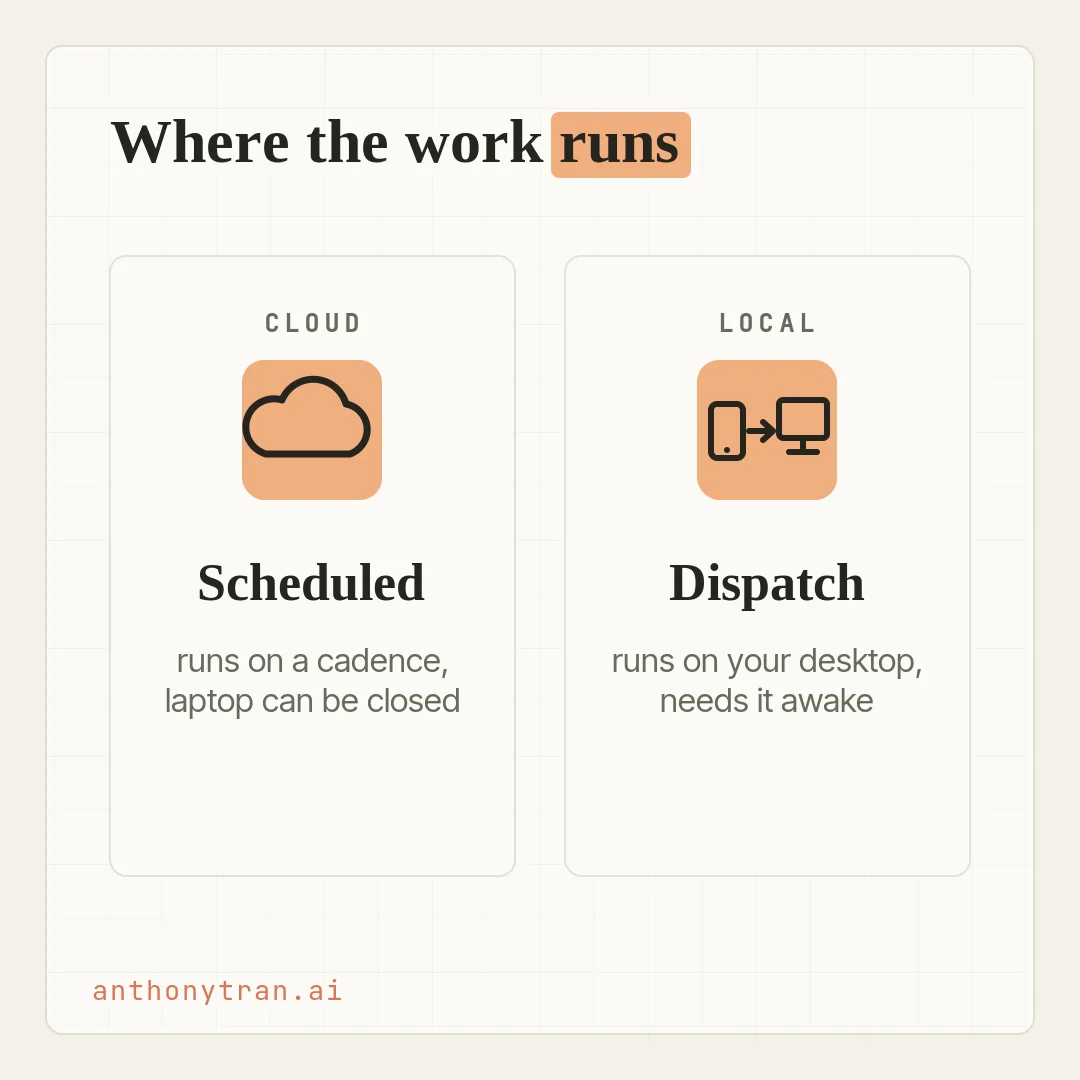
One detail here has changed since the course was made, so I checked Anthropic’s current docs. Scheduled tasks run in the cloud.
That means they keep their cadence even when your laptop is closed or the app is shut. You do not have to leave your computer on all night for a 6am briefing to land.
The trade: a scheduled task works with your connected apps and the files saved in your Claude account, not a folder sitting on your computer. So if a recurring job starts from local files, keep those files in a connected drive or your Claude account instead.
A few worth setting up:
- A Friday review of what shipped this week, pulled from Slack and your calendar
- A morning brief of the day’s meetings, with context from your notes and email
- A monthly metrics roll-up from spreadsheets in a connected drive like Google Drive or OneDrive
Because these run while you are away, start with jobs that only read and report, and watch the first few runs before you let one send or change anything.
Start a job from your phone: Dispatch
The last one covers the tasks you think of when you are nowhere near your desk. Dispatch lets you message Claude from your phone and hand it work that uses your desktop: your local files, your apps, and your connectors.
You send the task from the couch. Claude does the work back on your computer. You get a push notification when it is done.
One honest limit to know. Because Dispatch uses the real files and apps on your desktop, your computer has to be awake and the desktop app open while it works.
That is the trade for reaching your local stuff. If you need something to run while your machine is off, that is what a scheduled task or a regular cloud session is for.
Dispatch is in beta on Pro and Max plans right now, and it needs both the desktop app and the mobile app signed in.
How I actually use this
Let me be straight about my own setup. The two I use most are the multi-step, file-based jobs.
This very post is one of them. I pointed Claude at the course notes and my site files, had it work up a draft, build the images, and save it all into the right folder, and I steered it the whole way.
Scheduled tasks and Dispatch are newer levers, and I am honest that I have not wired my whole week around them yet. But I know the first one I would set up.
A Friday review that checks my calendar and my notes and tells me what shipped and what is still open. That is the beauty of it.
You do not have to use every feature on day one. You reach for the one that fixes a real annoyance, and you leave the rest until you need it.
Put This Into Practice
The patterns only click when you match one to your own week. So do that now, on paper, before you hand anything off.
I run [type of business] and my week is mostly [the kind of work you do]. I want to find a good first task for Claude Cowork.
- Ask me up to 3 questions about the work that eats my time, how sensitive the information is, and how easily I can check the result.
- Then point out which of my tasks are multi-step, which lean on files, and which span my apps.
- Pick one small, low-risk task to hand off first. Tell me what to point Claude at, what it does not need, which approval mode to use, and how to check the finished work.
Keep it simple. I am not a developer.
Do that once and the guesswork is gone. You will have a real task, in a shape you can recognize, ready to hand off.
What the patterns are really for
Here is where I land. The three shapes tell you what is worth handing off.
Scheduled tasks and Dispatch tell you when and where the handoff can happen. The judgment stays with you the whole time.
Claude plans and does the work. You choose what it can touch, how much it can act on its own, and where the finished thing goes.
For anything with real stakes, keep it on Manual and check the result before it goes out.
You do not need all of it at once. Look at your calendar this week, find one job with a few steps that pulls from your files or your tools, and give that one to Cowork. That first match is the moment the rest of it makes sense.
~ Anthony
Frequently asked.
What can Claude Cowork do?
Cowork takes on whole multi-step tasks and hands back finished work. The tasks worth giving it share three shapes: they take several steps, they live in real files on your computer, or they span the tools you already use like email, Slack, and your calendar. It can also run tasks on a schedule and take jobs you send from your phone.
Do Claude Cowork scheduled tasks run when my computer is off?
Yes. Scheduled tasks run in the cloud, so they keep their cadence even when your computer is asleep or the Claude desktop app is closed. They work with your connected apps and the files saved in your Claude account, not a folder on your computer. So if a recurring job starts from local files, keep those files in a connected drive or your Claude account.
What is Dispatch in Claude Cowork?
Dispatch lets you send Claude a task from your phone and have it use your desktop, including your local files, apps, and connectors. Your computer has to be awake and the desktop app open while it works. It is in beta on Pro and Max plans and needs both the desktop and mobile apps.
What should you not hand to Claude Cowork?
Skip the one-step questions you could just ask in Chat, and go slow on anything vague, hard to undo, or full of private information it does not need. The best first tasks are small, low-risk, and easy to check. For anything that sends a message, changes a shared file, or has real stakes, keep Claude on Manual and review the result first.
Stop re-explaining yourself to Claude.
Grab the free AI Starter Kit: my exact Claude setup, so it knows your business. Plus the lessons as they land.
Anthony Tran
13 years in marketing and an Air Force veteran. I use Claude every day to market and grow my own business, and I break down what works in plain English. Writing and recording from Arizona.