
The Claude desktop app has three modes: Chat, Cowork, and Code. Most people only ever use one. Here's what each is for, and how to pick.
Which Claude mode should you use: Chat, Cowork, or Code?
Use Chat for quick back-and-forth, like asking a question, drafting something, or thinking out loud. Use Cowork when you have a bigger job you want Claude to run with on its own, like research across a bunch of sources or working through a folder of files into a finished document.
Use Code if you build software. The simplest rule: match the mode to the size of the job and how much you want Claude to handle on its own.
If you have only ever used Claude in a browser at claude.ai, you have been using Chat. That is the front door, and it is great.
But the desktop app gives you two more modes built for heavier work, and a lot of people never find them. That is where much of the real value hides.
One thing to know up front: Chat is on every plan, including the free one, while the two heavier modes need a paid Claude plan.
A quick way to picture it. Chat is texting a quick question to a sharp coworker.
Cowork is handing that coworker a whole project and letting them run with it. Code is bringing in a developer to build something custom. Same Claude, three different jobs.
Chat: for quick back-and-forth
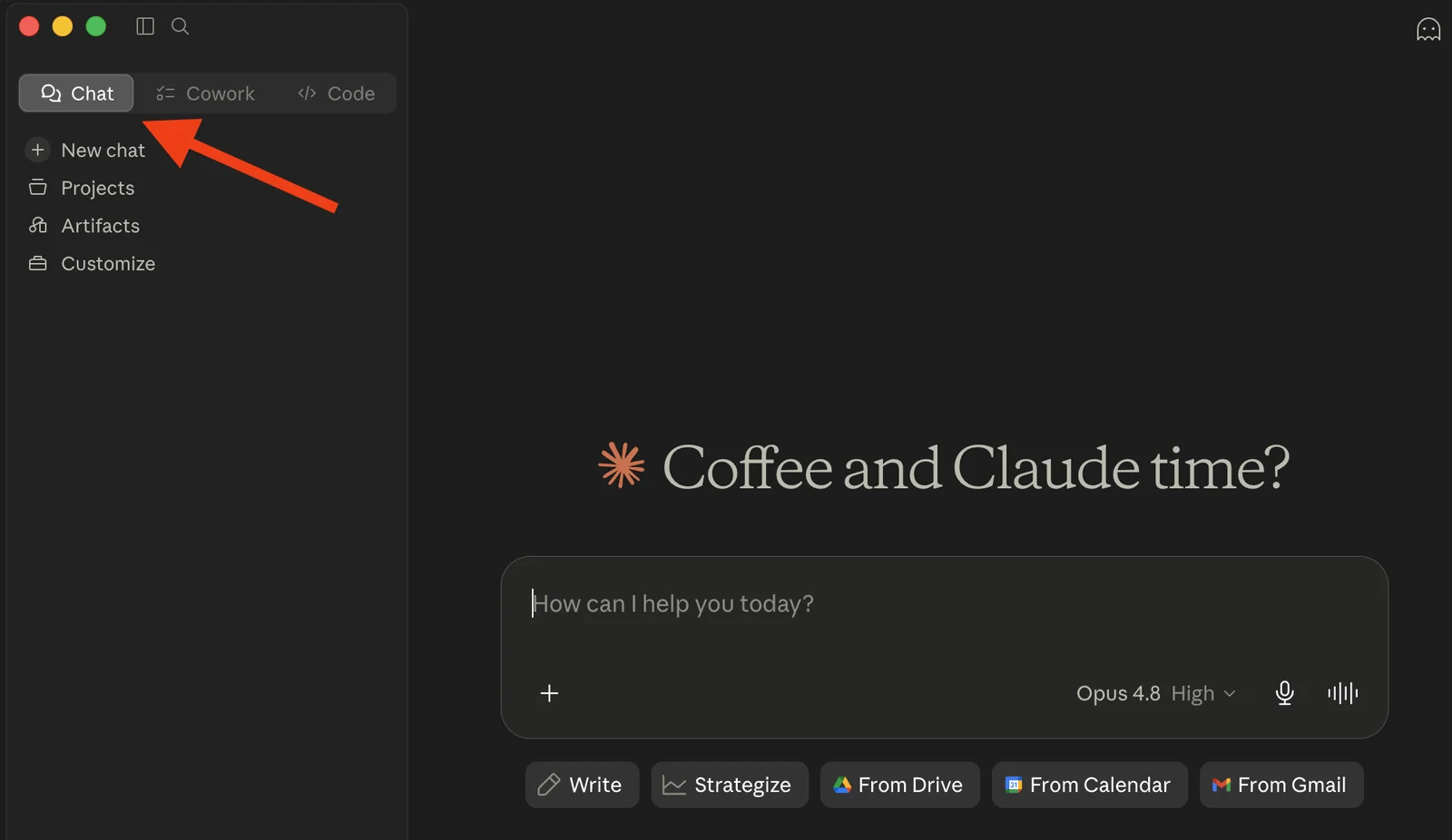
Reach for Chat when you want a fast exchange. Questions, drafts, brainstorming, working through a problem one reply at a time. This is the same Claude you know from the website, so if you have used Claude before, it works the way you expect.
The desktop app adds a few things the browser cannot do because it runs right on your computer. You can double-tap a key to pull Claude up over whatever you are working on, ask your question in a little window that floats on top, and get back to work without switching tabs.
You can hand it a screenshot so it sees exactly what is on your screen instead of you trying to describe it. And on a Mac you can just talk instead of type.
Use Chat when the job is small and you want an answer, an idea, or a draft in the next minute or two.
Cowork: for the big jobs you want done for you
Here is the mode most people are missing, and the one worth learning next.
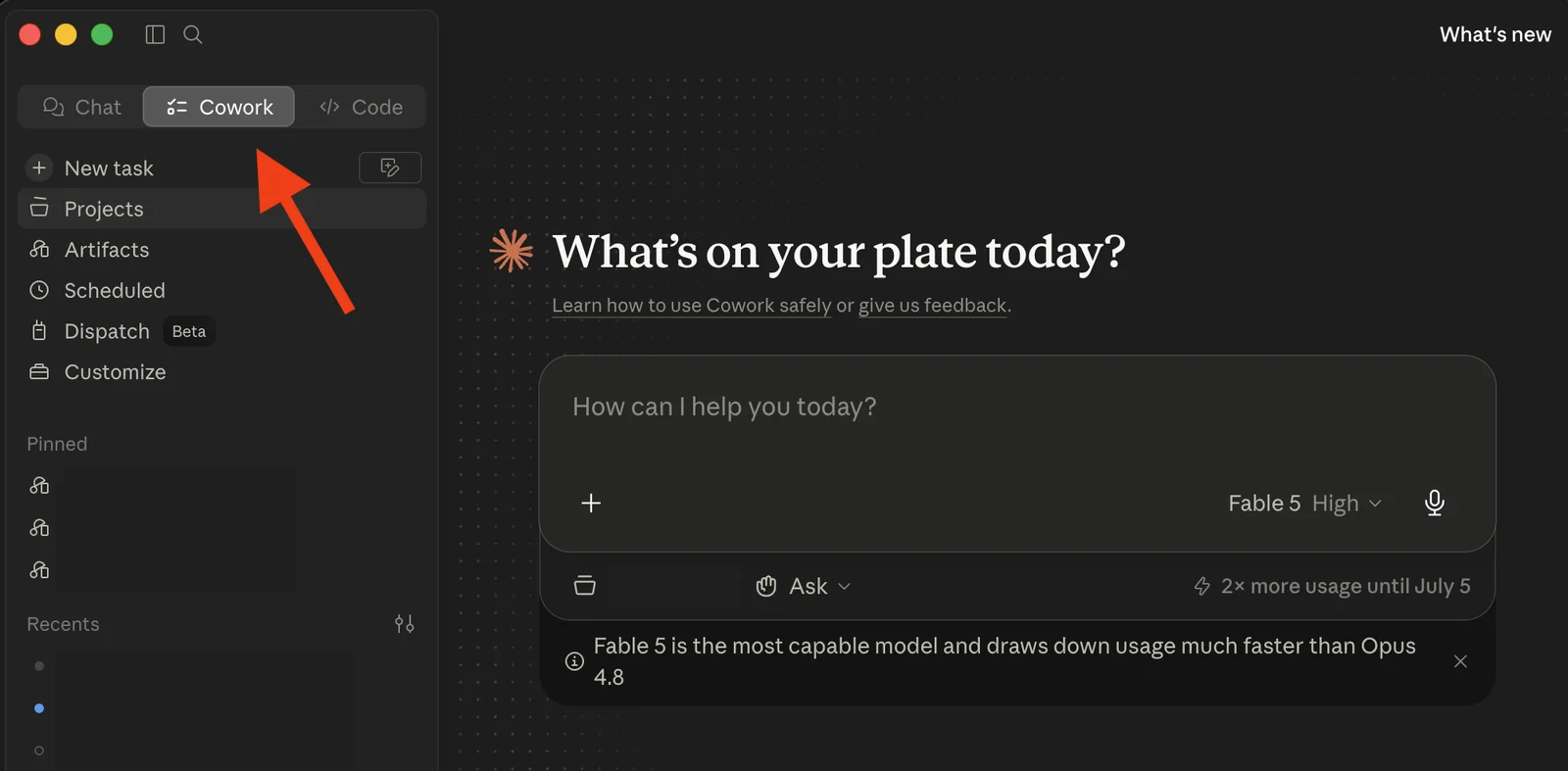
Cowork is built for work that takes real effort, not just one good prompt. You give it a goal, point it at your files and tools, and it goes and does the work.
Not one answer in a chat window, but a finished thing: a research brief pulled from a dozen sources, a folder of fifty documents read and summarized, a slide deck built from material scattered across your files. It can even run recurring jobs on a schedule, like a morning briefing that pulls from your calendar and messages before you sit down, as long as your computer is awake and the app is open.
The way it works is simple. It usually asks a few questions first to pin down what you want, then builds a plan you can watch as it goes.
It works inside the folders you choose, reads what you give it access to, and saves the finished work right back. You stay in control the whole time.
I can tell you this one works because I am using it right now. This whole blog, the writing, the images, the website behind it, gets built in Cowork.
I am not a coder. I just tell it what I am trying to do, point it at my files, and we go back and forth until it is right.
That is the mode that turned Claude from a thing I ask questions into something that does real work alongside me.
Reach for Cowork when the job has several steps, pulls from more than one place, or you want a finished piece of work instead of a back-and-forth.
Code: for building software
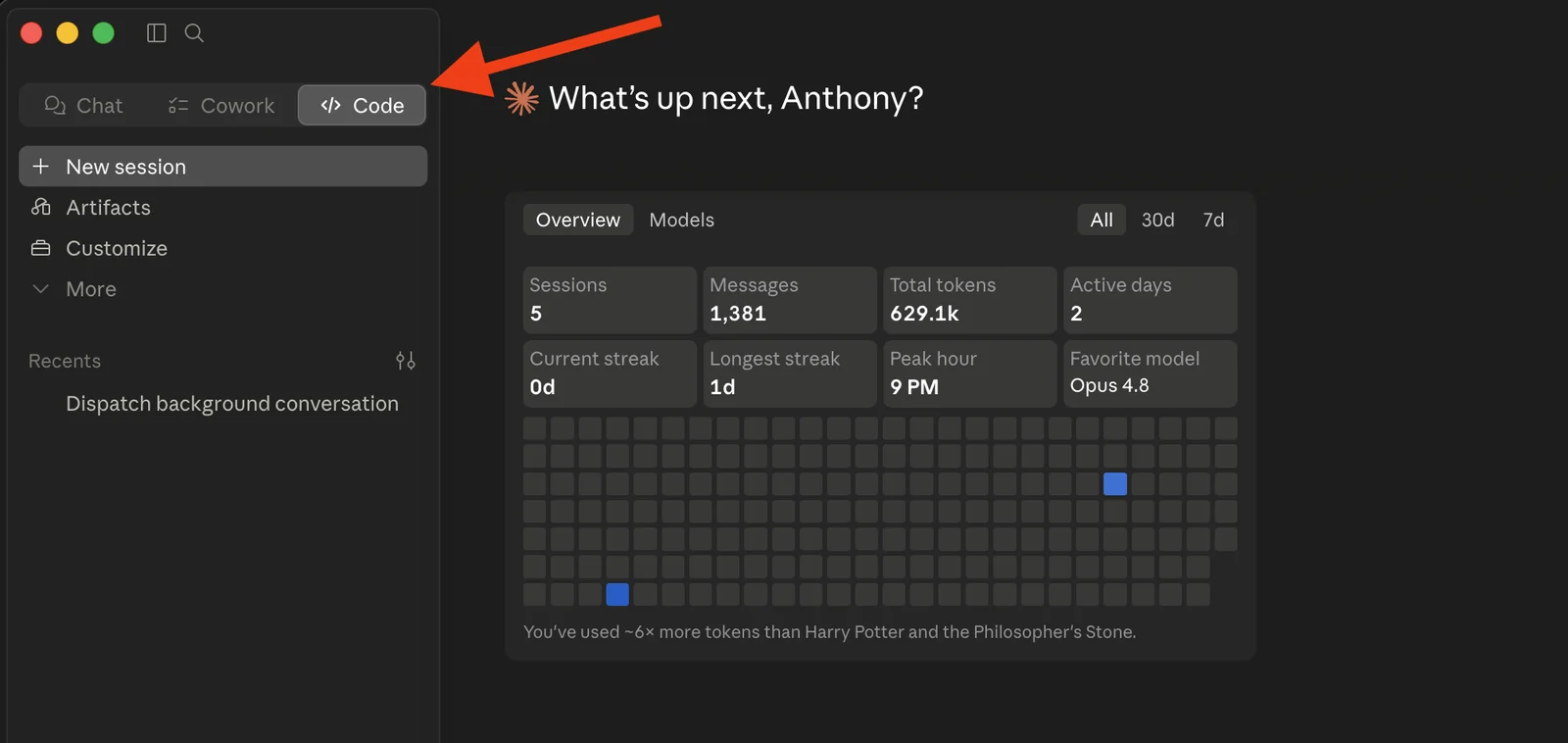
Code is the developer mode. It runs a full setup for writing, testing, and launching software, working right inside your code with the technical tools a developer expects.
I will be straight with you: I do not write software, so this is not my lane, and if you are a business owner like me it probably is not yours either. The honest takeaway is just to know it exists.
If you or someone on your team builds, fixes, or maintains apps and websites, the Code tab is for them. If you do not, you can happily ignore it and never miss a thing.
That is the part worth remembering. Two of the three modes are built for regular work in plain English. Only one is aimed at developers.
A simple way to choose
You do not need to memorize feature lists. Ask two questions.
First, how big is the job? A quick question or a one-off draft lives in Chat. A multi-step job that pulls from several places, or that should end in a finished document, belongs in Cowork.
Second, are you building software? If yes, that is Code. If no, you are choosing between Chat and Cowork, and the first question already answered it.
Here is the same thing at a glance.
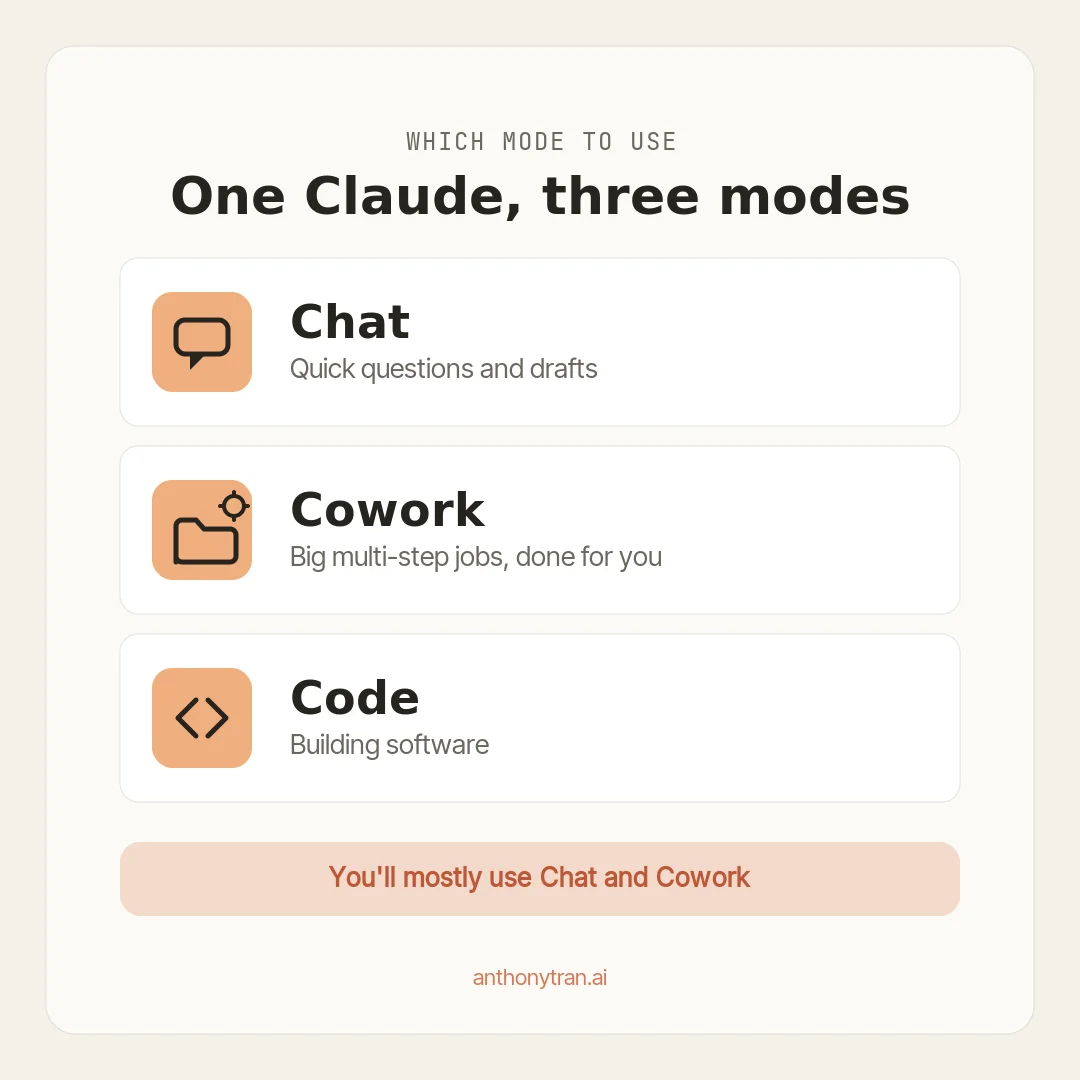
And the same thing in a table you can skim:
| Mode | Best for | Use it when |
|---|---|---|
| Chat | Quick questions, drafts, brainstorming | You want an answer in a minute or two |
| Cowork | Multi-step work, files, research, finished documents | You want to hand off a whole task and get something finished |
| Code | Building, fixing, and maintaining software | You work with code |
One quick word of caution
The further you move from Chat, the more Claude can do on its own, so a little care goes a long way. Cowork and Code can read and change real files and act through your connected tools, so keep them pointed at the folders and accounts you actually mean to share, and review what they did before you rely on it.
Some of the most hands-off features are still new and ask permission before they touch anything. Treat it like a sharp assistant with access to your desk: helpful, fast, and worth a quick check on the way out.
Put This Into Practice
Two things to try this week.
First, download the Claude desktop app if you have only been using the browser. If you are on a paid plan, that opens up Cowork and Code too.
Second, take one task you normally cram into a chat window, something with a few steps or a few sources, and run it in Cowork instead. If you are not sure it is a Cowork job, paste this into Claude and let it tell you.
Here is a task I do: [describe it in a sentence or two].
Based on how big it is and how many steps and sources it involves, tell me whether this is better as a quick Chat or as a Cowork job, and why. Keep it short.
This builds the instinct over time. After a few of these, you will reach for the right mode without thinking about it.
The whole thing in one line
Claude is not one thing. It is three modes, and the trick is matching the mode to the job: Chat for quick questions, Cowork for the big work you want done for you, and Code for building software. Go ahead and move one real task into Cowork this week, and you will feel the difference.
~ Anthony
Frequently asked.
What is the difference between Claude Chat, Cowork, and Code?
Chat is for quick back-and-forth like questions, drafts, and brainstorming. Cowork is for bigger jobs you want Claude to run on its own, like research across many sources or working through a folder of files into a finished document. Code is for building software. Pick the mode by how big the job is and how much you want Claude to do on its own.
What is Claude Cowork used for?
Cowork is the agentic mode. You give it a goal, point it at your files and tools, and it does the work: multi-source research, reviewing a folder of documents, building a slide deck, or running recurring tasks on a schedule. It is the mode for work that takes real effort, not a quick answer.
Do you need to know how to code to use Claude Cowork?
No. Cowork is built for regular work like research, analysis, and producing documents, all in plain English. Code is the only mode aimed at developers. If you do not build software, you will live in Chat and Cowork and never need the Code tab.
Stop re-explaining yourself to Claude.
Grab the free AI Starter Kit: my exact Claude setup, so it knows your business. Plus the lessons as they land.
Anthony Tran
13 years in marketing and an Air Force veteran. I use Claude every day to market and grow my own business, and I break down what works in plain English. Writing and recording from Arizona.