
Cowork carries the context you set up, not the context it guesses. Two layers do most of the work: global instructions for who you are, and projects for what you are working on. Here is how to put both in place.
How do you give Claude Cowork standing context?
In Chat, memory builds itself. Turn it on and Claude picks things up from your conversations.
Cowork works differently. The context that carries from one task to the next is mostly the context you set up on purpose.
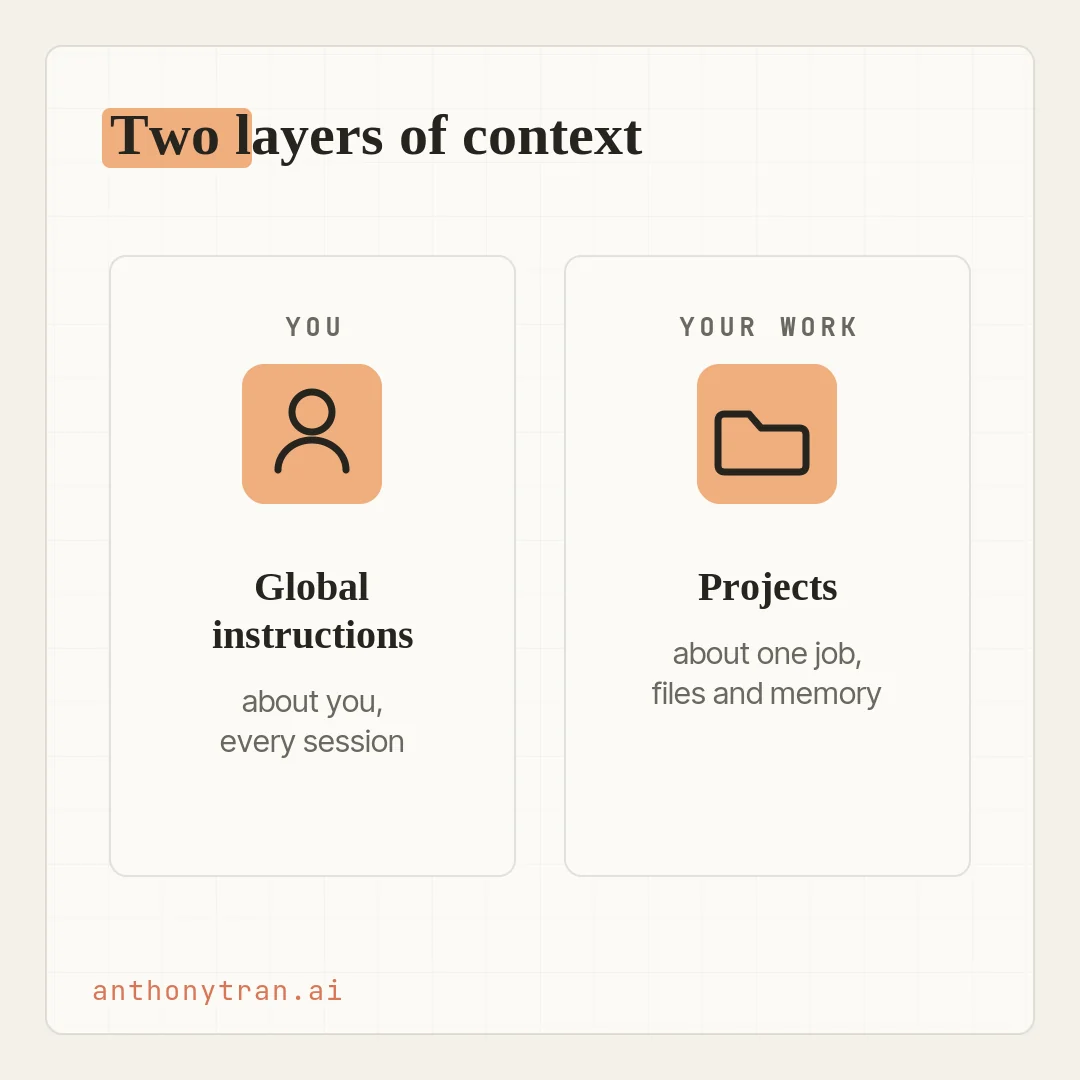
Two layers do most of that work. Global instructions are about you, and they apply to every session.
Projects are about one stream of work, and each one holds its own files and memory. Most people start with global instructions and add a project when a chunk of recurring work needs its own home.
This lesson is the how-to for both. If you want the map of all four building blocks first, start here.
Global instructions: the brief for every session
Global instructions are a standing brief. You write them once, in Settings, and Claude references them in every session after that. Every task at your desk, every scheduled run, every job you send from your phone gets that brief as context from the start.
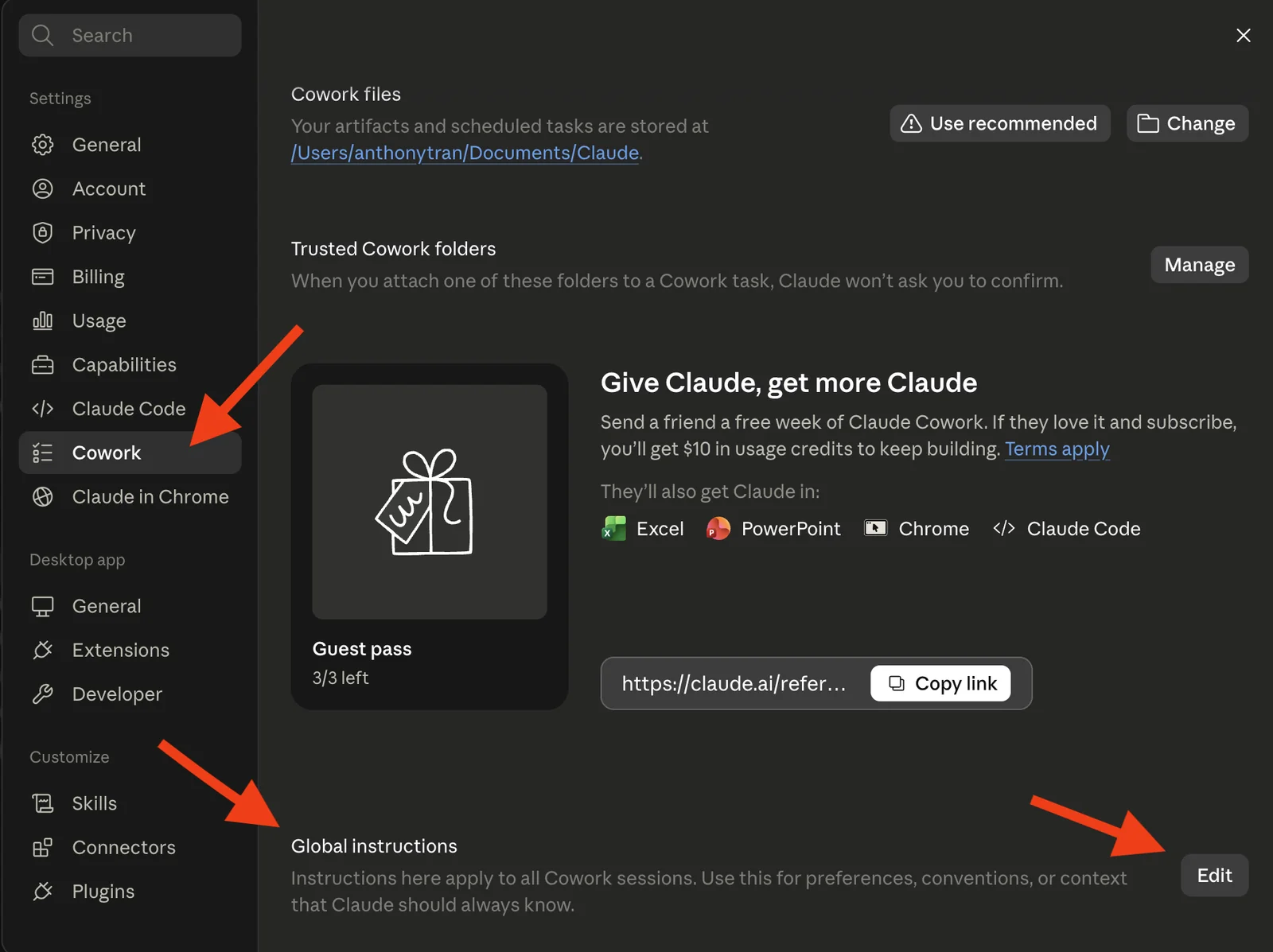
Setting them up takes a minute. In the desktop app, go to Settings, then Cowork, then click Edit next to Global instructions. Write your brief and save.
What goes in it is simple. Who you are and what you do.
The shorthand and acronyms you use, so Claude does not have to ask what “the QBR deck” is. And how you like work delivered: your formats, your lengths, your tone.
It does not need to be perfect on day one. As you work, you will notice the corrections you keep giving, things like “lead with the bottom line” or “skip the Oxford commas. Those are exactly what belongs in here.
Two things to keep out. Anything tied to one client or one project belongs in that project, not in the brief that rides along on everything.
And anything sensitive, passwords, private client details, stays out entirely. Global instructions travel with every session, so keep them broad and safe.
Projects: a home for one stream of work
Global instructions cover you. A project covers what you are working on.
A project is a workspace tied to one stream of work: a client, a recurring deliverable, a launch. Inside it are three things you set up, and one that Claude builds for you.
- Instructions. Like global instructions, but scoped to this project. “This project is our weekly leadership update. Pull from the team folder and end with a draft for review.”
- Scheduled tasks. Recurring runs that belong to the project, like a Friday status pull. These run in the cloud, so point them at connected apps or account files, not a folder that is only there when your computer is on.
- Context. A folder, a link, or a URL every task in the project can pull from.
- Memory. What Claude carries forward from the tasks you run inside the project. You do not write this one, it builds up as you work. It is selective, though, not a full transcript, so anything that has to stay exact belongs in the project’s files or instructions, not memory alone.
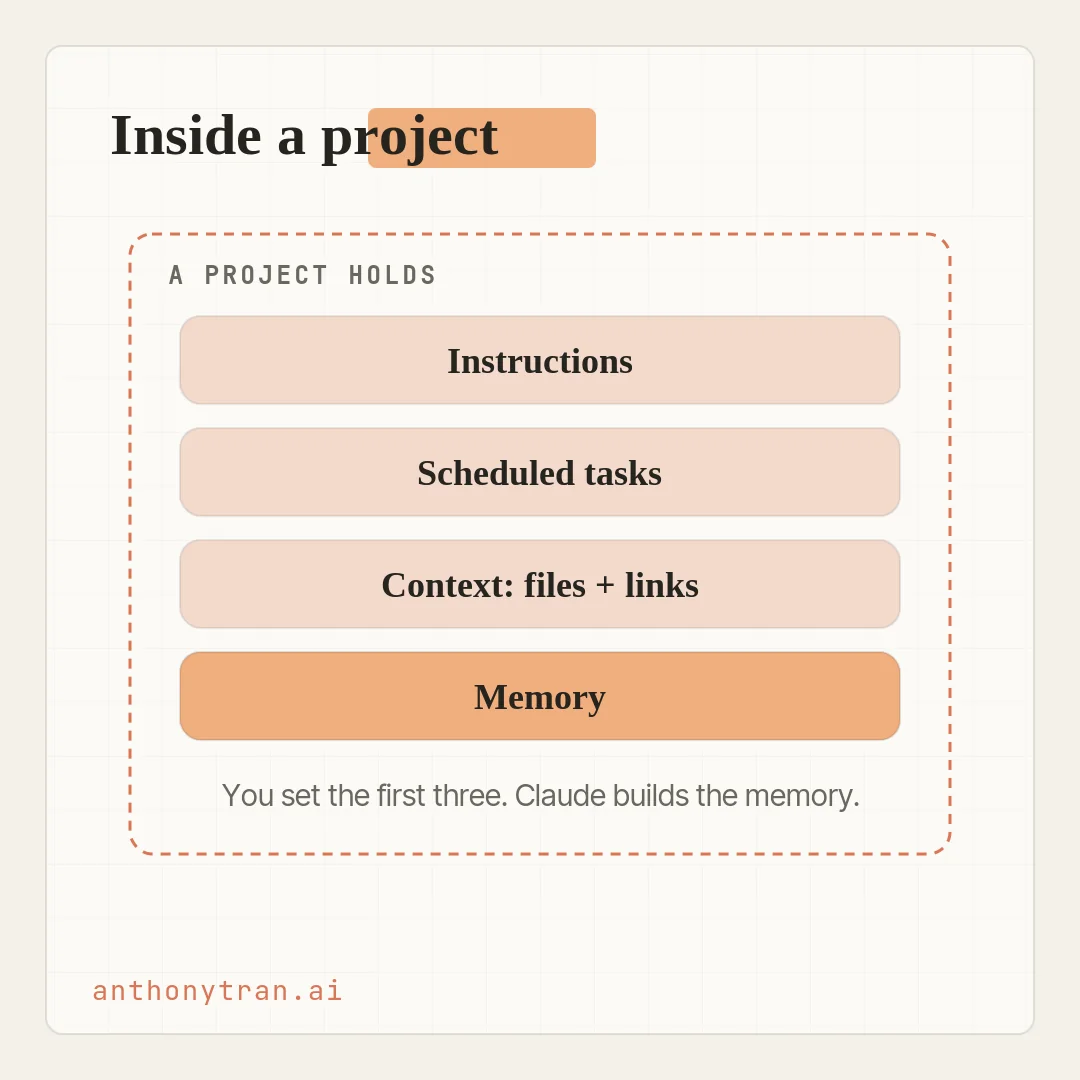
That last one is the difference a project makes. Outside a project, a new session does not inherit memory from your past one-off sessions, though your global instructions and any skills, plugins, and connectors you have on still apply.
Inside a project, each task adds to what Claude carries forward, so the next one can open already holding the client’s situation, recent decisions, and what is still open, without you restating it. That memory stays inside the project.
What Claude remembers for one client does not carry into another.
One detail on where projects run. A project works across desktop, web, and your phone, and its files travel with your Claude account.
The one exception is a project pointed at a folder on your computer. Claude can only reach that local folder while the desktop app is open on that machine, so those projects stay tied to desktop.
Streams of work that make good projects are a client or account, a recurring deliverable like a monthly report, or a launch you are running until it ships.
Three ways to start a project
You do not always start from nothing. There are three ways in, depending on where your material already lives.
- From scratch. Start empty and add instructions and context as you go.
- From a folder you already work out of. Point the project at a folder on your computer. Because it is a local folder, Claude reaches it through the desktop app, so that project’s Cowork sessions stay on desktop.
- From a Chat project. If you already run projects in Chat, you can bring the instructions and files over. This is a one-time import, not a live sync, so later changes do not move between the two.
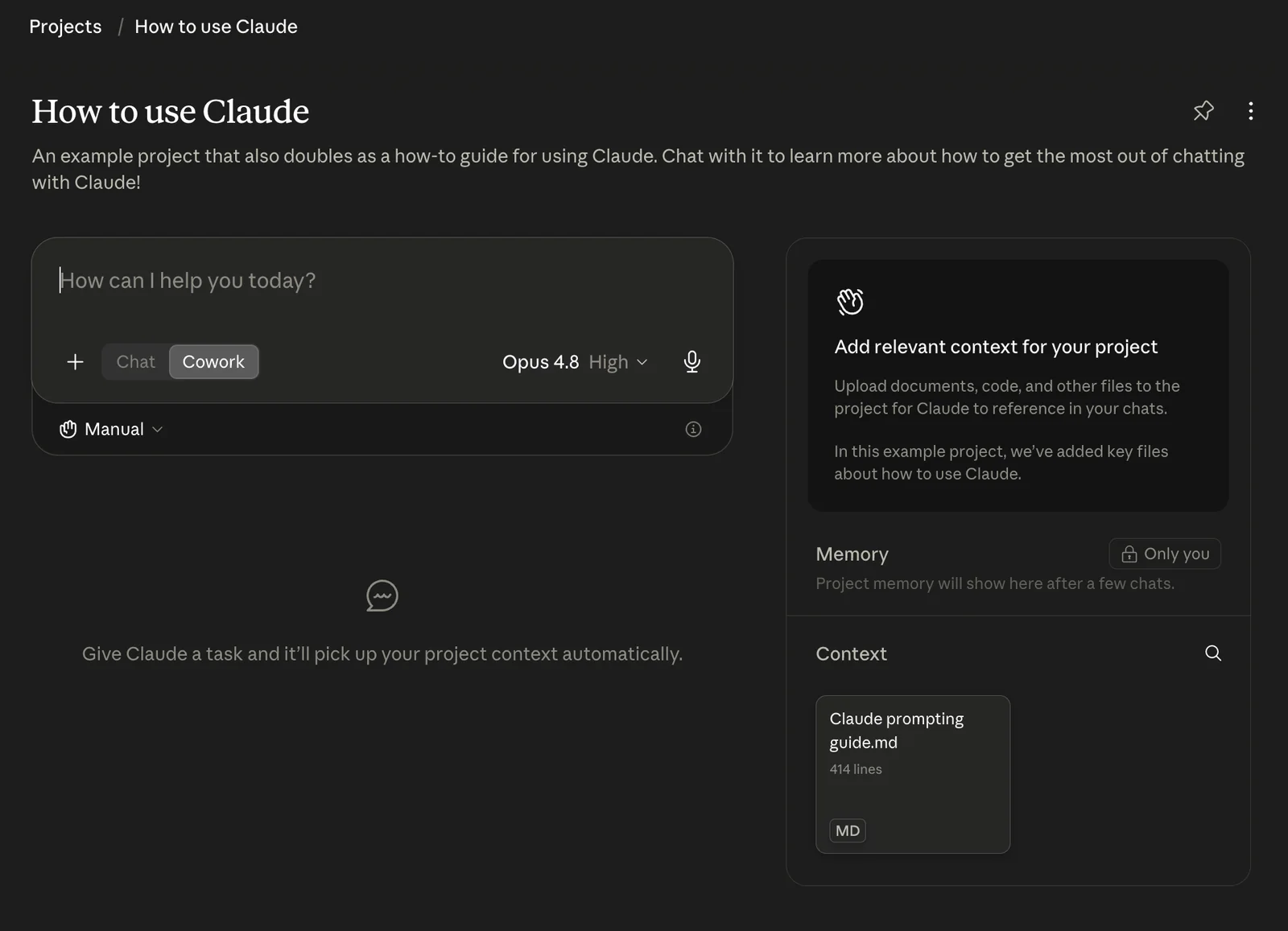
To create one, click Projects in the Cowork sidebar, hit the plus, and pick whichever start is easiest. You can update the instructions and connectors any time. If you need a project pointed at a different local folder, check its options or just start a fresh project around the new folder.
Put This Into Practice
Put both layers in place today. Two moves, neither one big.
First, write a rough first-pass global instructions block. Do not overthink it. This starter is enough to begin.
I am a [role] at [business], mostly working on [your main one or two streams of work]. Some shorthand you should know: [acronyms or terms you use a lot]. Most of what I need is [docs, decks, briefs, whatever you make most]. Keep updates and briefs short, lead with the recommendation, and keep background to a paragraph. Let me review the preview before you create the final file.
Then create one project for something recurring you are in right now, a client, a monthly deliverable, a current initiative. Give it a one-line brief and the few files or links it needs.
If it needs a folder from your computer, use the desktop app and pick a small, backed-up folder, not your whole Documents. Then run a task, start a second one, and ask Claude what the project is for and what is still open.
If it misses something that matters, write that into the project’s instructions. That is both layers of standing context, set up in one sitting.
Onboard your new teammate
So here is the shape of it. Global instructions tell Cowork who you are.
A project tells it what you are working on. Set the first once, spin up a project for one real stream of work, and Cowork stops starting from zero every time.
Start with the global instructions this week. Add the project when a piece of work is clearly its own thing. That is how you turn Cowork from a sharp stranger into something that already knows the job.
~ Anthony
Frequently asked.
What is the difference between Claude Cowork global instructions and projects?
Global instructions are about you. They are a standing brief set once in Settings that applies to every Cowork session. A project is about one stream of work. It is a workspace for a client, a recurring report, or a launch, with its own instructions, files, scheduled tasks, and memory. Global instructions cover the whole account, a project covers one job.
How do you set global instructions in Claude Cowork?
In the Claude desktop app, go to Settings, then Cowork, and click Edit next to Global instructions. Write who you are and what you do, the shorthand and acronyms you use, and how you like work delivered, then save. From then on Claude references that brief in every Cowork session, whether you start it at your desk, on a schedule, or from your phone.
Does a Claude Cowork project remember past work?
Yes. A project carries memory forward from the tasks you run inside it, so the next task can open already holding the background, the recent decisions, and what is still open. That memory is scoped to the project and does not carry into other projects or one-off sessions. It is selective, not a full transcript, so keep anything that must stay exact in the project's files or instructions, not memory alone.
Are Claude Cowork projects desktop-only?
No. Projects work across desktop, web, and phone, and their files travel with your Claude account. The one exception is a project pointed at a folder on your computer: Claude can use that local folder only through the desktop app while it is open on that machine.
Stop re-explaining yourself to Claude.
Grab the free AI Starter Kit: my exact Claude setup, so it knows your business. Plus the lessons as they land.
Anthony Tran
13 years in marketing and an Air Force veteran. I use Claude every day to market and grow my own business, and I break down what works in plain English. Writing and recording from Arizona.